5 Best Bank2CSV Alternatives for 2026
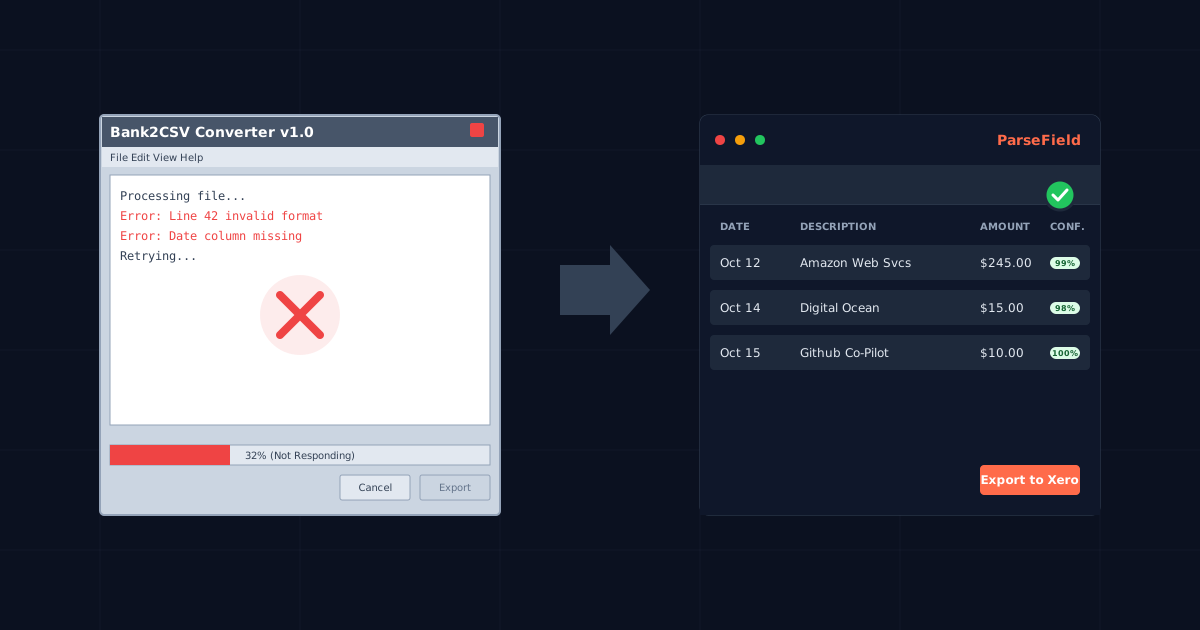
You've been using Bank2CSV to convert OFX or QFX files to CSV, and it works — until it doesn't. Maybe the pricing changed when ProperSoft merged everything into ProperConvert. Maybe you tried running a scanned PDF through it and got nothing. Maybe you need something web-based so you're not tied to one machine.
When you're a bookkeeper or accountant handling messy client data, "it mostly works" isn't good enough. You need a tool that handles every format your clients throw at you, without forcing you to spend hours fixing formatting errors.
This guide compares 5 practical Bank2CSV alternatives, with real pricing, honest pros/cons, and the specific accuracy features that matter when your client's books are on the line.
Clarification: Bank2CSV was originally designed as a format converter (OFX, QFX, QBO, QIF → CSV), not a PDF extraction tool. While ProperConvert (the successor) handles some PDFs, if your main need is converting PDF bank statements to Excel/CSV, most of the alternatives below will be a significant upgrade.
If you want to skip the comparison and try an AI-powered converter with built-in accuracy verification right now, ParseField's free tier lets you convert 30 pages — no credit card, no commitment.Why People Look for Bank2CSV Alternatives
Bank2CSV (by ProperSoft) has been a stable utility since around 2011. It was excellent at what it did: converting one financial file format to another. But the landscape has shifted, and for many professionals, it no longer fits the modern workflow.
First, ProperSoft merged Bank2CSV and its sister products (PDF2CSV, Bank2QBO) into a single subscription product called ProperConvert. The old one-time license is gone. ProperConvert now costs $19.99/month or $179.99/year for individuals. For occasional users, that's a steep recurring cost.
Second, accuracy on PDFs is often hit-or-miss. Bank2CSV/ProperConvert is not built on modern AI OCR. It struggles significantly with:
- Scanned or image-based PDFs: If your client sends a photo of a statement or a scanned paper copy, Bank2CSV often can't read it at all.
- Accuracy gaps: User reviews on platforms like Sitejabber cite omitted transactions and date format errors during PDF conversion.
- No verification: There is no built-in way to know which extracted values are reliable. You extract the data, but you still have to verify every line item manually to ensure nothing was dropped or misread.
If you are dealing with PDF bank statements, you need a different class of tool.
5 Best Bank2CSV Alternatives Compared
Here are the 5 top alternatives depending on your specific volume, format needs, and budget.
1. ParseField — Best for Accuracy Verification
ParseField is an AI-powered OCR tool built specifically to convert PDF bank statements, invoices, and receipts into clean CSV/Excel. Unlike legacy converters, it works with any bank format and handles scanned/image-based PDFs effortlessly.
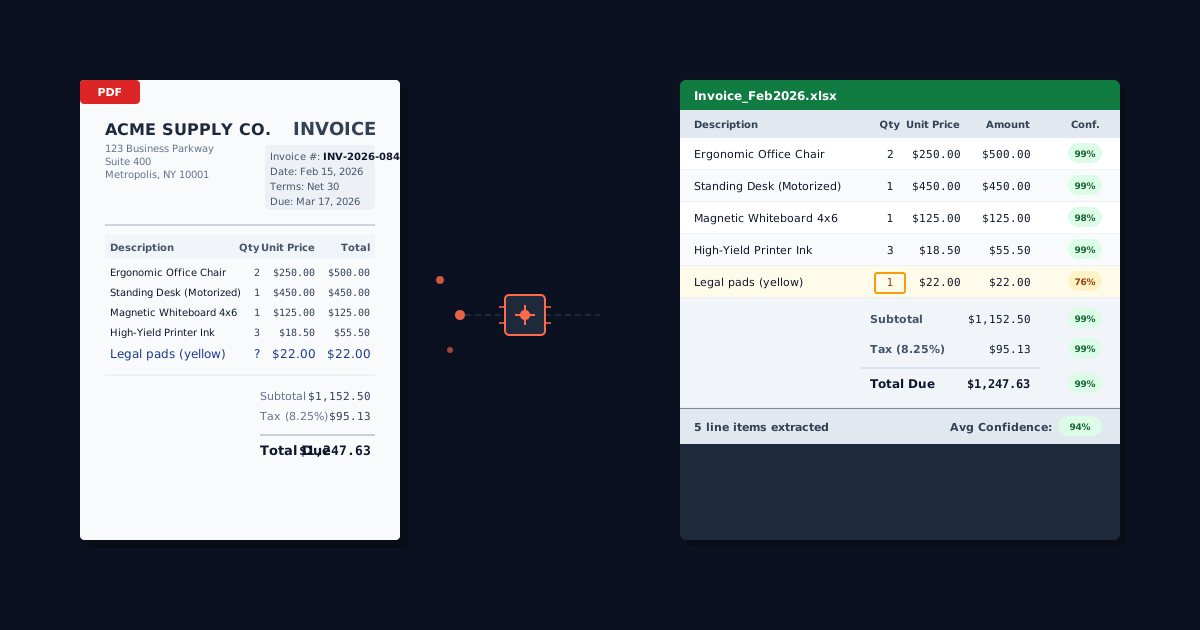
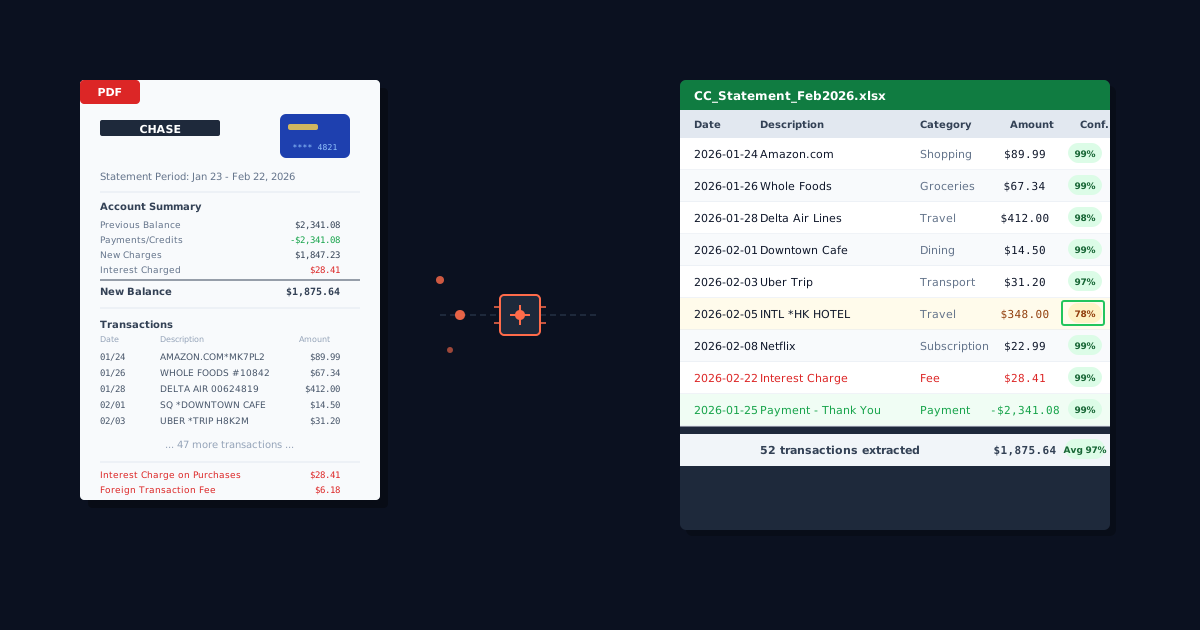
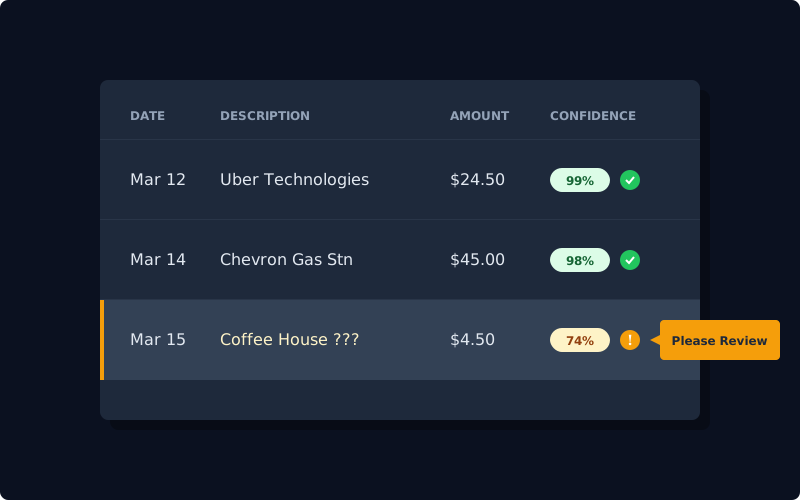
Key differentiator: Confidence Scoring. Most tools just give you a CSV and good luck. ParseField assigns a confidence score to every single extracted value. If the AI is 99% sure about a transaction amount, it gets a green badge. If a smudge on the paper makes a "5" look like a "6", the confidence score drops (e.g., 72%), and the field is flagged for your review. This cuts your review time dramatically because you only need to check the 5–10% of fields that actually need attention.
- Best for: Bookkeepers and accountants who need to trust the data before importing it.
- Pricing: Free tier (30 pages to start), paid plans for higher volume.
- Limitation: Web-based only (no desktop app).
2. DocuClipper — Best for High-Volume Teams
DocuClipper is a cloud-based converter that uses a template library to map data from thousands of different banks. It is a robust solution for firms that process hundreds of statements a month.
- Best for: Large firms processing high volumes across a consistent set of banks.
- Pricing: Starts at $29/month (~500 pages).
- Key Feature: Auto-reconciliation comparison (checks extracted totals against the statement summary).
- Limitation: It relies heavily on templates. If a client uses a small regional bank not in their library, you may need to configure the mapping manually or wait for support to add it.
3. MoneyThumb (pdf2csv) — Best for QuickBooks Desktop
MoneyThumb offers a suite of converters (PDF2CSV, PDF2QBO) specifically designed for getting data into desktop accounting software. It has been a long-time competitor to ProperSoft.
- Best for: Users who specifically need
.qboformatted files for QuickBooks Desktop. - Pricing: Online plans from $24.95/month; Desktop licenses ~$149 one-time.
- Limitation: The product suite is fragmented (you might need to buy multiple tools). The OCR add-on required for scanned PDFs is a separate cost and Windows-only.
4. Tabula — Best Free Option (Technical Users Only)
Tabula is a free, open-source tool that lets you extract tables from text-based PDFs. You manually select the table area on the screen, and it exports the data to CSV.
- Best for: Tech-savvy users with zero budget and only a few text-based PDFs.
- Pricing: Free (Open Source).
- Limitation: No OCR. It is completely useless for scanned PDFs. It requires manual selection for every Single page. It does not parse dates or formats — it just dumps the text into cells, so you will spend time cleaning the CSV.
5. Able2Extract Pro — Best General-Purpose PDF Tool
Able2Extract is a powerful general-purpose PDF editor. It converts PDFs to Excel, Word, PowerPoint, and more. It's great if you need to edit PDFs, merge pages, or sign documents in addition to converting them.
- Best for: General office administrators who need a Swiss Army knife for PDFs.
- Pricing: $199.95 one-time license.
- Limitation: It is not a financial tool. It doesn't understand debits vs. credits, date formats, or bank statement structures. You get a spreadsheet, but it often requires significant cleanup to get into an importable format.
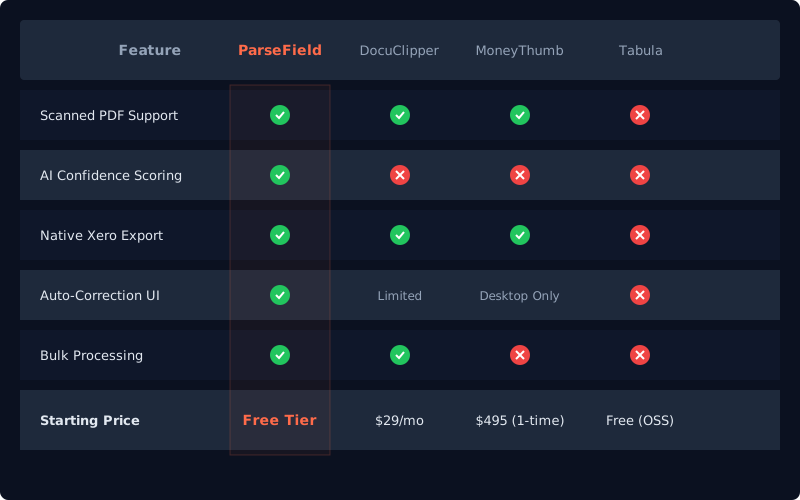
Comparison Table: At a Glance
| Feature | ParseField | DocuClipper | MoneyThumb | Tabula | Able2Extract |
|---|---|---|---|---|---|
| Input: Text PDF | ✅ | ✅ | ✅ | ✅ | ✅ |
| Input: Scanned PDF | ✅ AI OCR | ✅ AI OCR | ⚠️ PDF+ Only | ❌ | ⚠️ Basic OCR |
| Confidence Scoring | ✅ Per-field | ❌ | ❌ | ❌ | ❌ |
| Free Tier | ✅ 30 pages | ❌ | ❌ | ✅ Fully Free | ❌ |
| Pricing | Free / Paid | $29/mo | $24.95/mo | Free | $199 (One-time) |
See which values to trust — and which to double-check.
ParseField's confidence scoring flags the 5–10% of extracted fields that need your review, so you're not re-verifying the entire statement manually. Try it free — 30 pages to start, no credit card.
How to Choose the Right Bank Statement Converter
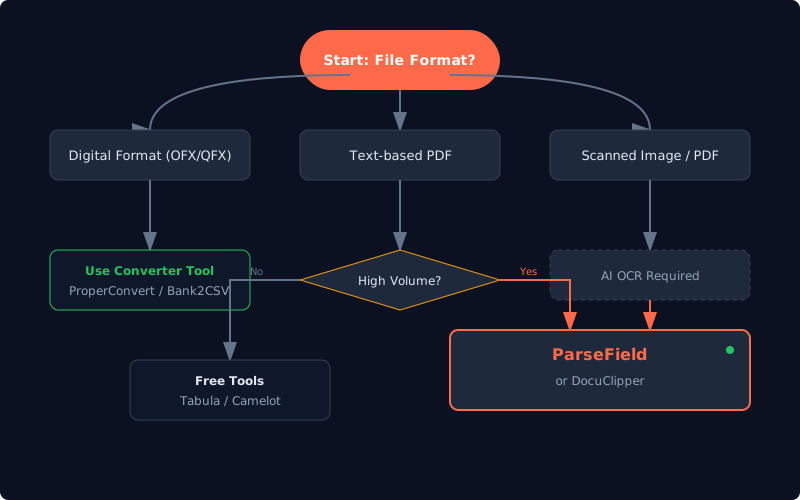
Don't just pick "the best" one — pick the right one for your actual workflow. Here is a simple decision framework:
- If your files are OFX/QFX/QBO: Stick with ProperConvert (the successor to Bank2CSV) or a simple format utility. Don't overpay for AI OCR you don't need.
- If you have scanned or image-based PDFs: You absolutely need AI-powered OCR. Bank2CSV won't work. Tabula won't work. ParseField or DocuClipper are your best bets.
- If you process 200+ statements/month: DocuClipper's volume pricing and template system might be efficient for you, provided your banks are supported.
- If accuracy is verified manually: If you find yourself spending hours staring at spreadsheets to catch typos, switch to ParseField. The confidence scoring highlights exactly where the AI might have struggled (like a coffee stain on a receipt) so you can fix it instantly.
The Confidence Score Difference
Here is what that looks like in practice. Instead of a raw spreadsheet, you get an interactive review screen. Green means reliable. Amber means "check this." It turns data entry into data review.
Conclusion
Bank2CSV served its purpose well for years as a format converter. But modern bookkeeping involves messy PDFs, scanned receipts, and a need for verified accuracy. If you are dealing with PDF statements, tools like ParseField offer a massive upgrade in capability — not just converting text, but understanding the financial data and telling you how confident the AI is in the result.
Stop Guessing Whether Your Conversions Are Accurate
Every bank statement converter claims high accuracy. ParseField is the only one that shows you exactly which fields to trust and which to review — with confidence scoring on every extracted value. Upload a PDF bank statement and see your first results in minutes.
Free tier: 30 pages to start. No credit card. No commitment.
Convert Your First Statement Free →
Frequently Asked Questions
Is Bank2CSV still available, or has it been discontinued?
▼
Bank2CSV hasn't been discontinued, but ProperSoft (the developer) has merged it — along with PDF2CSV, Bank2QBO, and other single-purpose converters — into a unified product called ProperConvert. You can still download Bank2CSV, but ProperSoft is directing users toward the ProperConvert subscription ($19.99/month or $179.99/year for individuals).
Can Bank2CSV convert scanned PDF bank statements?
▼
No. Bank2CSV and ProperConvert can only process text-based PDFs — files where you can select and copy the text. For scanned or image-based bank statements, you need a tool with AI-powered OCR, such as ParseField (free for up to 30 pages), DocuClipper, or MoneyThumb with the PDF+ add-on.
What is the cheapest way to convert bank statements to CSV?
▼
Tabula is completely free and open-source, but it only works with text-based PDFs and requires manual table selection. For a free option that includes OCR and accuracy verification, ParseField's free tier covers 30 pages to start with full confidence scoring — no credit card required.
What is confidence scoring in bank statement conversion?
▼
Confidence scoring assigns a reliability percentage to each extracted data field (date, amount, description). A score of 98% on a transaction amount means the AI is highly confident it read the value correctly. A score of 72% flags it for your manual review. This lets you focus your checking time on the 5–10% of fields that actually need attention, instead of re-verifying the entire statement. ParseField is currently the only mid-market converter offering per-field confidence scoring.
How do I import a converted CSV into QuickBooks Online?
▼
In QuickBooks Online, go to Banking → Link Account → Upload from file. Select your CSV, map the columns (date, description, amount), and confirm the import. The key is making sure your CSV has consistent column headers and clean data — which is exactly what a good bank statement converter handles for you. For a detailed walkthrough, see our guide on converting bank statements from PDF to Excel.