How to Convert Bank Statements from PDF to Excel (3 Methods)

Manually retyping bank statement data into Excel is one of the most tedious, error-prone tasks in bookkeeping. Whether you're a small business owner reconciling expenses or an accountant managing fifty clients, data entry eats up hours of valuable time every single week.
The PDF format is great for printing and viewing, but it's terrible for analysis. You can't sum a column in a PDF. You can't filter by category. To do any real work, you need that data in a spreadsheet. But getting it there is often a battle against formatting issues, merged cells, and typos.
In this guide, we'll walk through three methods for converting bank PDF statements to usable Excel spreadsheets — from fully manual to fully automated — so you can pick the one that fits your workflow and budget.
If you want to skip ahead to the fastest method, ParseField can extract your bank statement data in minutes — but let's walk through all three options so you can decide what works best.
Why Converting Bank Statements to Excel Still Matters
Even in 2026, banks make it surprisingly hard to get your own data. While bank feeds exist, they often break, miss historical data, or only sync the last 90 days. When you take on a new client with a messy set of books, or need to audit last year's financials, the PDF statement is often the only source of truth available.
Bookkeepers and accountants need this data in Excel or CSV format for several critical reasons:
- Reconciliation: Comparing bank lines against the general ledger to catch missing transactions.
- Analysis: Pivoting data by vendor or category to understand spending trends.
- Importing: Getting historical transactions into accounting software like QuickBooks, Xero, or Sage without manual entry.
Let's look at how to solve this problem.
Method 1: Manual Copy and Paste
The traditional way involves opening the PDF on one screen, opening Excel on the other, and manually typing out dates, descriptions, and amounts. Alternatively, if you simply need to get the data out of the PDF and into Excel to manipulate it yourself, copy-paste is the zero-cost option. Just be prepared for some cleanup work.
(If you are currently using tools like Bank2CSV and looking for better options, check out our comparison of Bank2CSV alternatives).
The Process
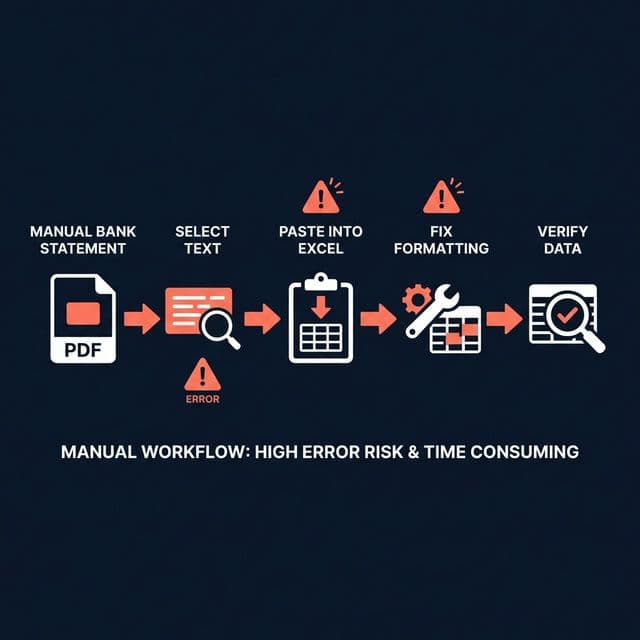
- Open your bank statement PDF.
- Highlight the table of transactions.
- Copy and paste it into Excel.
- Spend the next 30 minutes fixing the formatting because everything pasted into a single column.
The Reality
While this method is "free" in terms of software cost, it is extremely expensive in terms of time. Bank statements are formatted for print, not data transfer. When you copy text, Excel rarely understands where one column ends and the next begins. You'll often find that:
- Debits and Credits get merged into a single text string.
- Multi-line descriptions (like a long check memo) split into separate rows, breaking your table structure.
- Dates paste in a format Excel doesn't recognize as a date.
Cons
- Extremely Slow: It can take 20–45 minutes to process just a single month's statement for one account.
- Error-Prone: It is dangerously easy to transpose digits (typing 54 instead of 45) or miss a decimal point.
- Soul-Crushing: Let's be honest, high-value financial professionals shouldn't be spending their days acting as human photocopiers.
Verdict
Manual entry is only suitable for extremely low volume — for example, if you just need to grab 5 transactions from a single page once a year. For anything else, it's a massive waste of resources.
Method 2: Free Online PDF-to-Excel Converters
A Google search for "PDF to Excel" yields dozens of free tools like Smallpdf, ILovePDF, and others. These tools use standard OCR (Optical Character Recognition) to try and "read" the text on the page and reconstruct it as a spreadsheet.
The Process
You upload your file to their website, wait a few moments, and download an Excel file.
The Reality
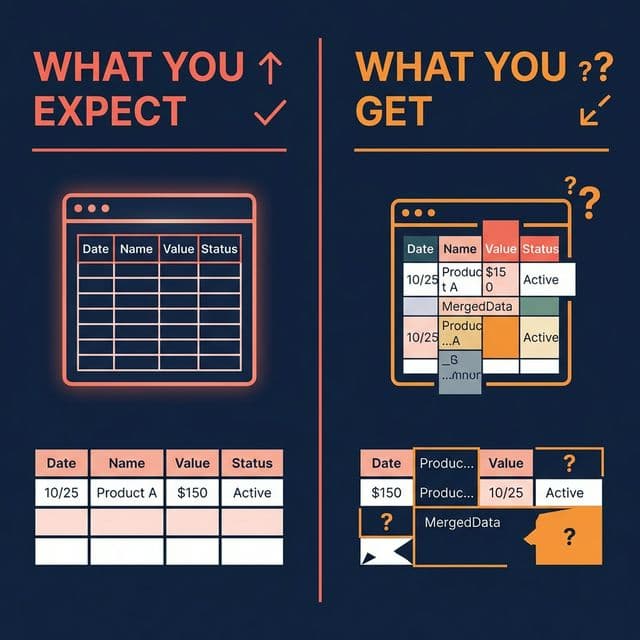
These general-purpose tools are designed to handle everything from restaurant menus to resume documents. They are not specialized for financial data. As a result, they often struggle with the complex layouts of bank statements.
Cons
- Formatting Issues: Bank statements often use multi-column layouts (e.g., a check image column on the left, transaction details in the middle, running balance on the right). Generic converters frequently merge these columns or miss-align the headers.
- No Accuracy Guarantee: You have to double-check every single cell. If the converter misreads a "1" as an "l", your reconciliation will be off, and finding that needle in the haystack can take hours.
- Serious Security Concerns: This is the big one. You are uploading sensitive financial documents — containing account numbers, names, and addresses — to unknown, free servers often located in jurisdictions with loose data privacy laws.
Verdict
These tools can work for simple, single-column documents that aren't sensitive. However, they remain not recommended for financial statements due to accuracy and security risks.
Method 3: AI-Powered Financial Extraction (ParseField)
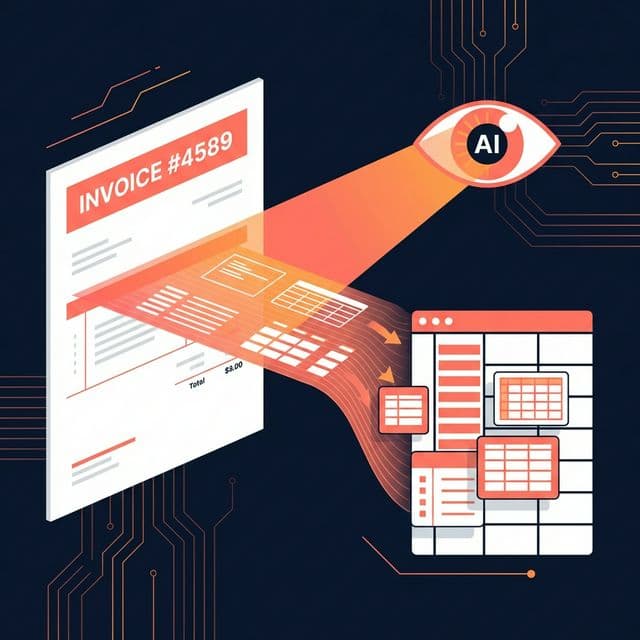
This is the modern approach used by efficiency-minded accounting firms. Specialized tools like ParseField don't just "read text"; they use AI models trained specifically on millions of financial documents to understand the structure of a bank statement.
How it Works
- Upload your PDF bank statement to ParseField.
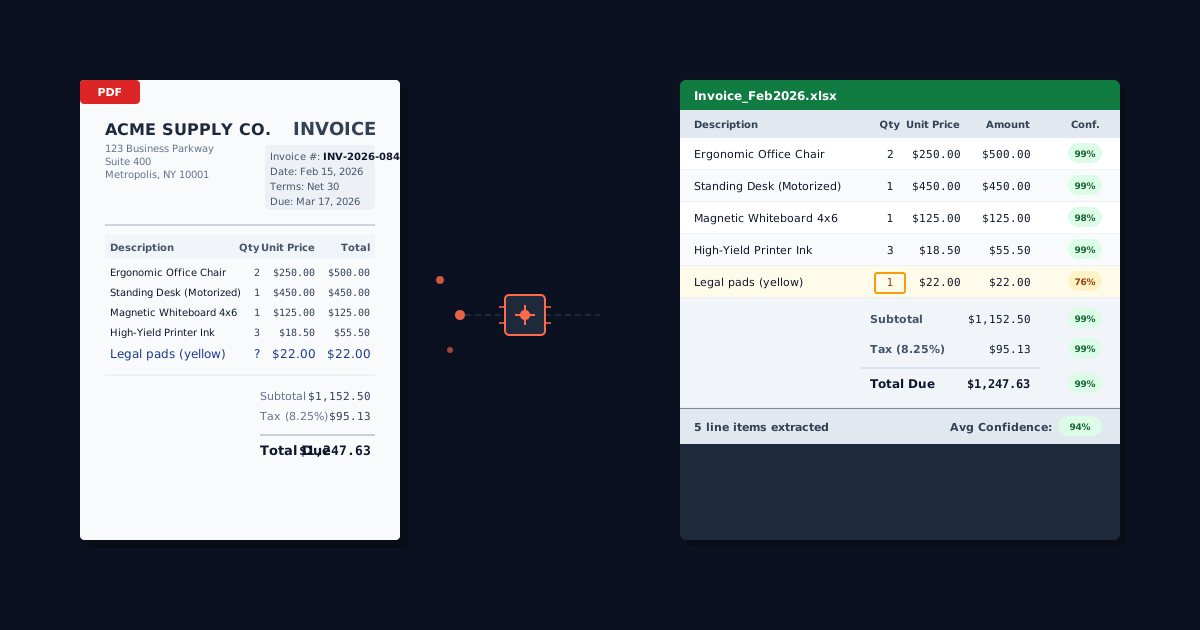
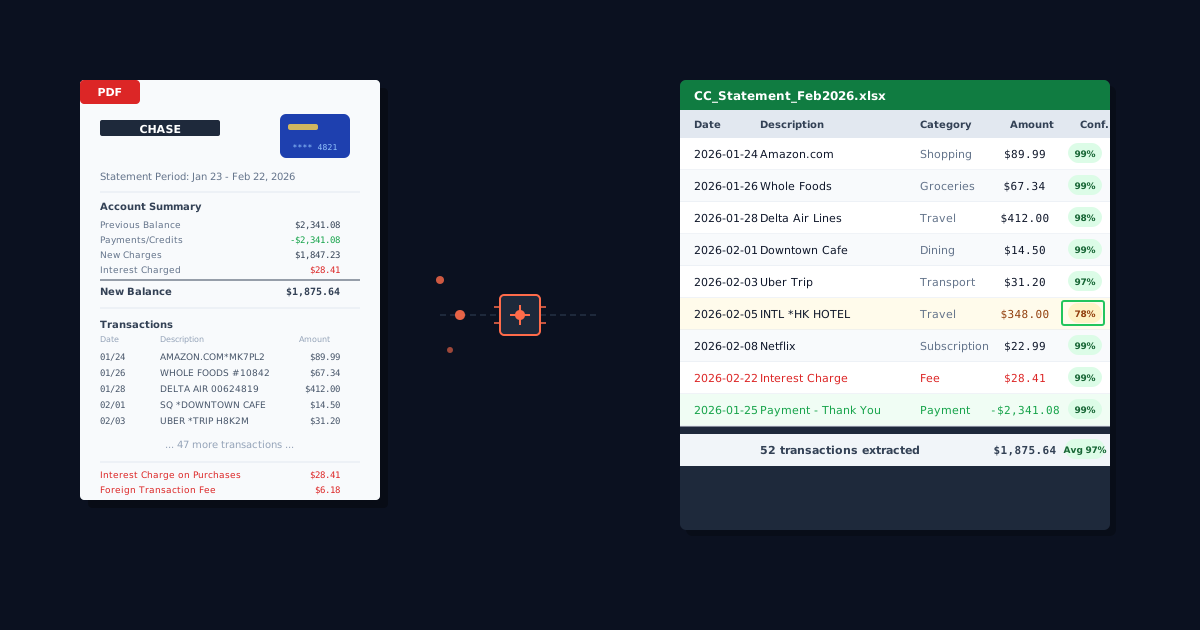
- AI Extraction: The engine identifies the transaction table, headers, dates, descriptions, and amounts. It ignores non-transactional noise like marketing messages or legal disclaimers.
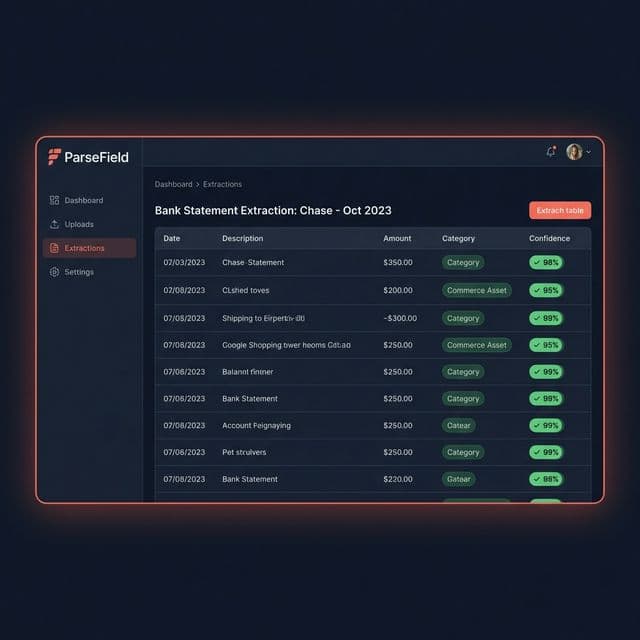
- Confidence Scoring: This is the key differentiator. ParseField flags any low-confidence characters (like a blurry "8" that might be a "3") so you verify only what needs attention.
- Export: You download a clean, formatted Excel or CSV file ready for import.
The Field-Level Confidence Advantage
What makes this approach different is the confidence scoring. Most OCR tools give you a "black box" output — you don't know if it's 100% right or 90% right. ParseField assigns a confidence score to every single extracted value. You can see at a glance if the AI is unsure about a specific number, allowing you to review only the 1% of data that might need a human eye, rather than re-reading the entire document.
Pros
- Speed: Convert months of statements in minutes.
- 99%+ Accuracy: Purpose-built for financial tables and multi-page layouts.
- Security: Data is processed securely, encrypted, and automatically deleted.
- Format Agnostic: Works with statements from Chase, Wells Fargo, Bank of America, and local credit unions equally well.
ParseField handles this automatically — upload your bank statement and get structured Excel data with confidence scores in minutes.
Side-by-Side Comparison: Which Method Should You Use?
| Manual Copy-Paste | Free Online Converters | AI-Powered (ParseField) | |
|---|---|---|---|
| Time per statement | 20–45 min | 5 min + 15–30 min fixing | A few minutes |
| Accuracy | Depends on you | Low–Medium | High (with confidence scores) |
| Handles multi-page | Painful | Often breaks | Yes |
| Works with all banks | Yes (manual) | Hit or miss | Yes |
| Data security | Local (safe) | Uploads to unknown servers | Encrypted, auto-deleted |
| Cost | Your time | Free | Free tier available |
| Best for | One-off, short docs | Simple single-page PDFs | Regular bookkeeping workflows |
Tips for Getting the Best Results
Regardless of which method you choose, a few best practices will help ensure your data is accurate:
- Always use the original PDF: Whenever possible, download the digital PDF directly from the bank portal. Scanned copies (images of paper statements) are much harder for computers to read accurately, although modern AI handles them much better than old template-based OCR.
- Verify Totals: Even with the best tools, always perform a quick "sanity check." Sum the extracted amounts in Excel and compare the total to the "Total Debits/Credits" line on the PDF summary page. If they match, your data is likely perfect.
- Watch out for "Float": Some banks list the date a transaction occurred and the date it posted. Make sure you extract the column that matches your accounting software's preference (usually the posting date).
Want to understand the technology behind this? Read our plain-English guide to OCR for financial documents.
Other Common PDF to Excel Tasks
If you are dealing with more than just bank statements, you might also need to digitize receipts for expense reports. Artificial intelligence can help there too. Check out our complete guide on how to convert receipts to spreadsheets.
Conclusion
If you process bank statements regularly, relying on manual entry is costing you more than you think — not just in hours, but in the bandwidth you could be using for higher-value advisory work. While free converters might seem like a quick fix, the time spent fixing their formatting errors often outweighs the benefits.
For accurate, reliable financial data extraction, a dedicated tool like ParseField is the clear winner. The confidence scoring feature alone saves hours of double-checking work, giving you peace of mind that the numbers in your spreadsheet match the numbers on the bank statement.
Ready to stop retyping bank statements?
ParseField extracts every transaction from your PDF bank statements in minutes, and shows you a confidence score on every field so you know exactly what to review. Start with the free tier — no credit card, no setup, cancel anytime.
Frequently Asked Questions
Is it safe to upload my bank statements to ParseField?
▼
Yes. Your files are encrypted during upload and processing, and are automatically deleted from servers after extraction. ParseField never stores your financial data permanently.
What bank statement formats does ParseField support?
▼
ParseField works with PDF statements from all major banks. The AI is trained to handle different layouts, multi-column formats, and multi-page documents automatically.
Can I convert multiple bank statements at once?
▼
Yes. You can batch-upload multiple PDFs and ParseField will process them all, outputting each as a separate clean spreadsheet.
Is there a free option?
▼
Yes. ParseField offers a free tier with 30 pages to start, so you can test it on your own statements before upgrading.