How to Convert PDF Invoices to Excel (Step-by-Step)
You have 30 vendor invoices sitting in your inbox. Each one is a PDF with a different layout—some from suppliers who use QuickBooks to generate invoices, others from vendors who clearly designed theirs in Word, and a few that are scanned copies of paper originals. Every one of them needs to end up as structured data in your accounting software before month-end close.
Retyping invoice details manually takes 5-10 minutes per invoice. Across 30 invoices, that's 2.5 to 5 hours of data entry—and that's before you catch the inevitable transposed amounts or misread vendor names during reconciliation. According to the Institute of Finance and Management (IOFM), manual invoice processing costs $12-$30 per invoice when you factor in labor, error correction, and approval routing.
There's a faster path. This guide covers three methods to convert PDF invoices to Excel, compared from the perspective of a bookkeeper or AP clerk who needs line items, totals, and vendor details extracted accurately—not just raw text dumped into a spreadsheet.
Why Bookkeepers Need More Than a Basic PDF Converter
Most guides on converting PDF invoices to Excel recommend generic tools like Smallpdf or Adobe Acrobat's export feature. These work fine for simple, single-table PDFs. Invoices are not simple, single-table PDFs.
A typical vendor invoice contains structured data across multiple sections:
- Header fields: vendor name, address, invoice number, invoice date, due date, payment terms
- Line items: description, quantity, unit price, tax rate, line total—sometimes across 5-50 rows
- Summary fields: subtotal, tax amount, shipping, discounts, total due
- Payment details: bank account, routing number, payment instructions
When a generic converter processes this PDF, it sees text arranged on a page. It doesn't know that "Net 30" is a payment term or that the column of numbers on the right side are line-item amounts. The result is a spreadsheet where header fields are mixed with line items, tax amounts land in the description column, and the payment terms end up in a random cell somewhere in row 47.
For a bookkeeper who needs to code each line item to the correct expense account and enter it as a bill in QuickBooks or Xero, this kind of output creates more cleanup work than it saves.
Method 1: Manual Data Entry
The approach everyone starts with. Open the invoice PDF on one monitor, open your spreadsheet on the other, and start typing.
When It Works
If you process fewer than 10 invoices per month and each has 5 or fewer line items, manual entry is straightforward. You can code expenses as you go, and the total time investment is under an hour.
Where It Breaks Down
Manual data entry carries a documented error rate of 1-4%, according to research compiled by Conexiom. On an invoice with 15 line items, that means at least one value is likely wrong. A unit price of $12.50 entered as $125.00 is a tenfold discrepancy that might not surface until bank reconciliation—or worse, until the vendor flags an underpayment.
The real cost is compounding. The IOFM estimates that fixing a single invoice error costs $53 on average when you account for the time spent identifying the error, correcting it, re-routing for approval, and updating downstream records. If even 5% of your manually entered invoices have errors, the correction labor alone exceeds what you'd spend on an automated tool.
At scale, manual entry is not a method—it's a bottleneck. A bookkeeper processing 50 invoices per month at 7 minutes each spends nearly 6 hours on data entry alone, before any review or coding.
Method 2: Generic PDF-to-Excel Converters
Tools like Adobe Acrobat, Smallpdf, ILovePDF, and Excel's built-in "Get Data from PDF" feature convert any PDF to a spreadsheet by detecting table-like structures on the page.
How They Work
Upload a PDF, wait 10-30 seconds, download an XLSX or CSV file. Some tools (like Excel's Power Query) can import PDF data directly into a worksheet without a separate upload step.
The Line-Item Problem
Generic converters treat a PDF as a visual layout, not a structured document. For invoices, this creates specific problems:
- Multi-line descriptions wrap incorrectly. A line item described as "Professional consulting services — Q4 project management and reporting" often spans two lines in the PDF. The converter splits it into two rows, breaking the alignment between descriptions and amounts for every row below it.
- Subtotals mix with line items. The converter can't distinguish between a line-item amount and the subtotal, tax, or total fields. They all end up in the same column.
- Header fields scatter. Invoice number, date, vendor name, and payment terms end up in unpredictable cells because they're positioned outside the main table area.
- Tax columns disappear. If the invoice has a tax rate per line item, the converter might merge it with the adjacent column or drop it entirely.
You'll spend 10-20 minutes per invoice cleaning up the output: reassigning scattered header values, merging split descriptions, separating summary fields from line items. For a bookkeeper handling 30 invoices at month-end, that's another 5-10 hours of cleanup that erases any time savings.
Security Considerations
Vendor invoices often contain bank account numbers, tax IDs (EINs), and pricing terms protected by NDAs. Free online converters rarely disclose where they store uploaded files or how long they retain them. If you're handling client AP data, your engagement letter and professional liability insurance likely require you to use tools with documented data handling policies.
When It Makes Sense
For invoices with a single, clean table and no complex line items—think a one-page utility bill with three charges—a generic converter works fine. For anything with line items, vendor details, and tax breakdowns, you'll need a purpose-built tool.
Method 3: AI-Powered Invoice Extraction
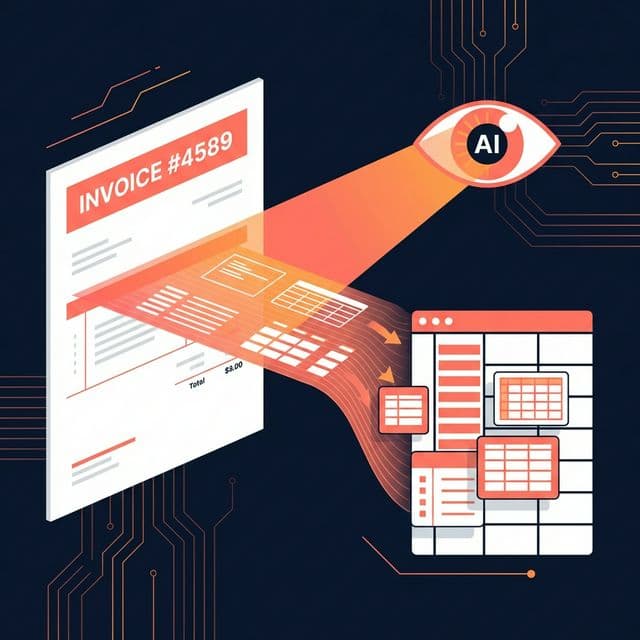
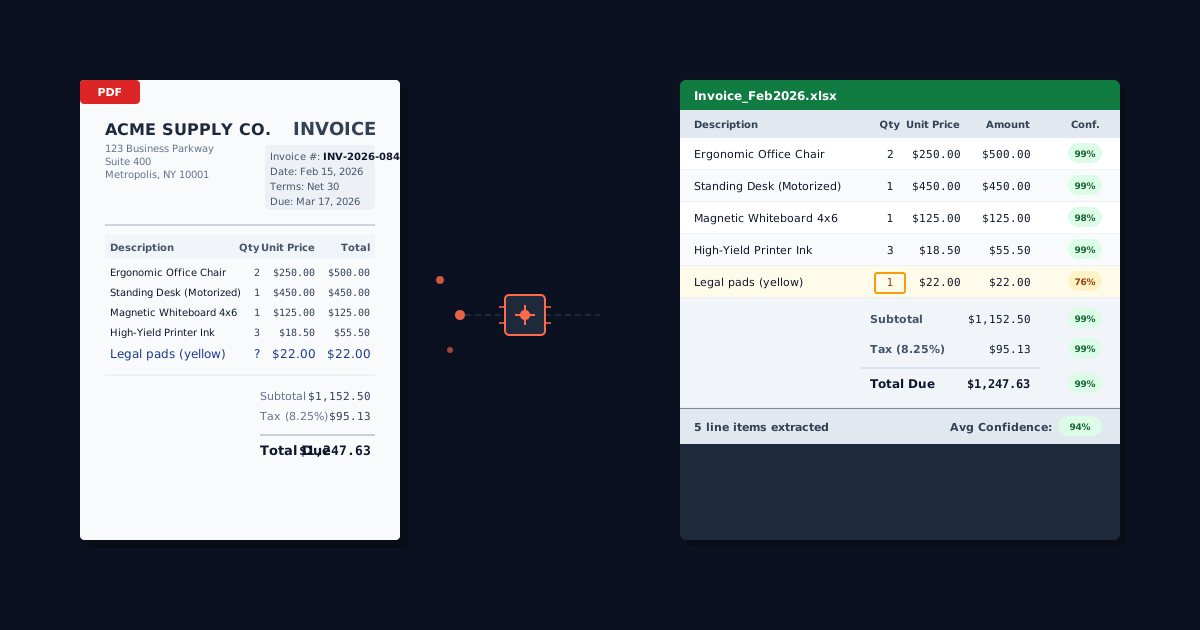
Specialized invoice extraction tools are trained on thousands of invoice formats. Instead of treating the PDF as a visual layout, they understand what an invoice contains: vendor information, line items with quantities and unit prices, tax calculations, and payment terms. They extract each field into its correct column, regardless of where it appears on the page.
How It Works
- Upload your PDF invoice (or a batch of invoices)
- Automatic extraction identifies header fields, parses every line item, and calculates totals
- Review the results—tools with confidence scoring show you exactly which fields need a second look
- Export to Excel or CSV, with line items as rows and field types as columns, ready for import into your accounting software
What Makes This Different for Invoices
The extraction understands invoice structure, not just table layout:
- Line items maintain their integrity. Description, quantity, unit price, tax, and line total stay linked as a single row, even when the description wraps across multiple lines in the PDF.
- Header fields extract separately. Vendor name, invoice number, date, due date, and payment terms are captured as distinct fields—not mixed into the line-item table.
- Tax and summary fields are labeled. Subtotal, tax amount, discounts, and total due appear as identified fields rather than anonymous numbers in the last few rows.
- Format-agnostic. The same process works whether the invoice was generated by SAP, QuickBooks, Xero, a custom ERP, or someone's Word template. No templates to configure or update when vendors change their layout.
The Confidence Score Advantage
When an extraction tool processes a 30-line invoice, not every value is equally clear. A printed unit price of "$45.00" on a clean digital PDF is unambiguous. But a scanned invoice where the "4" in "$4,500" could be a "1" due to a fold mark is a different story.
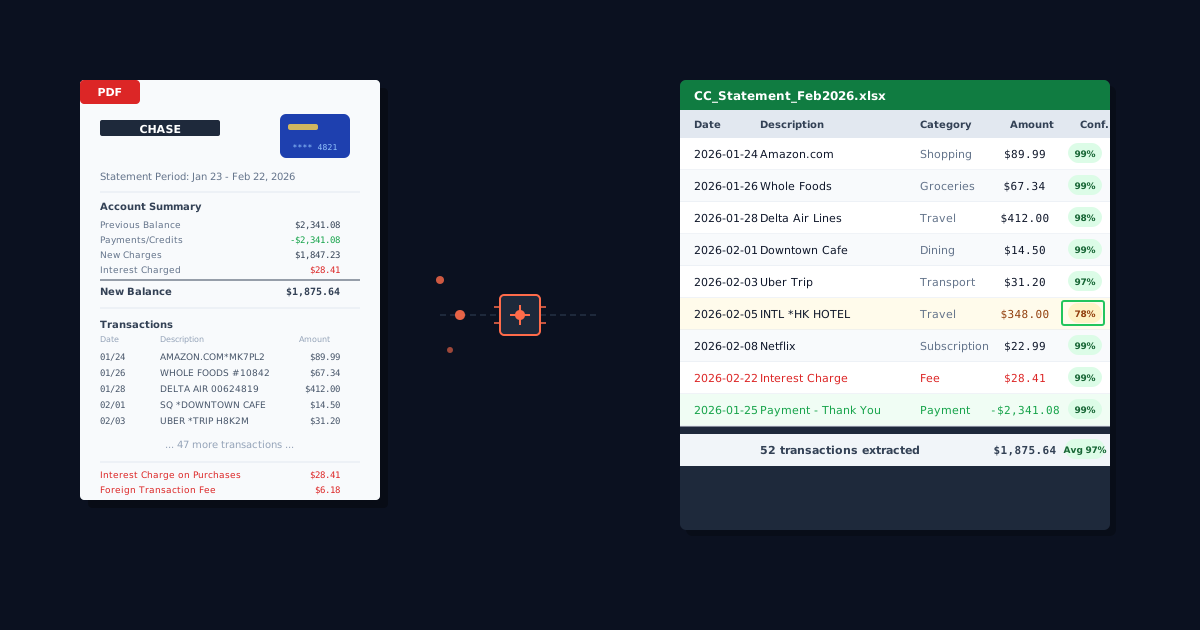
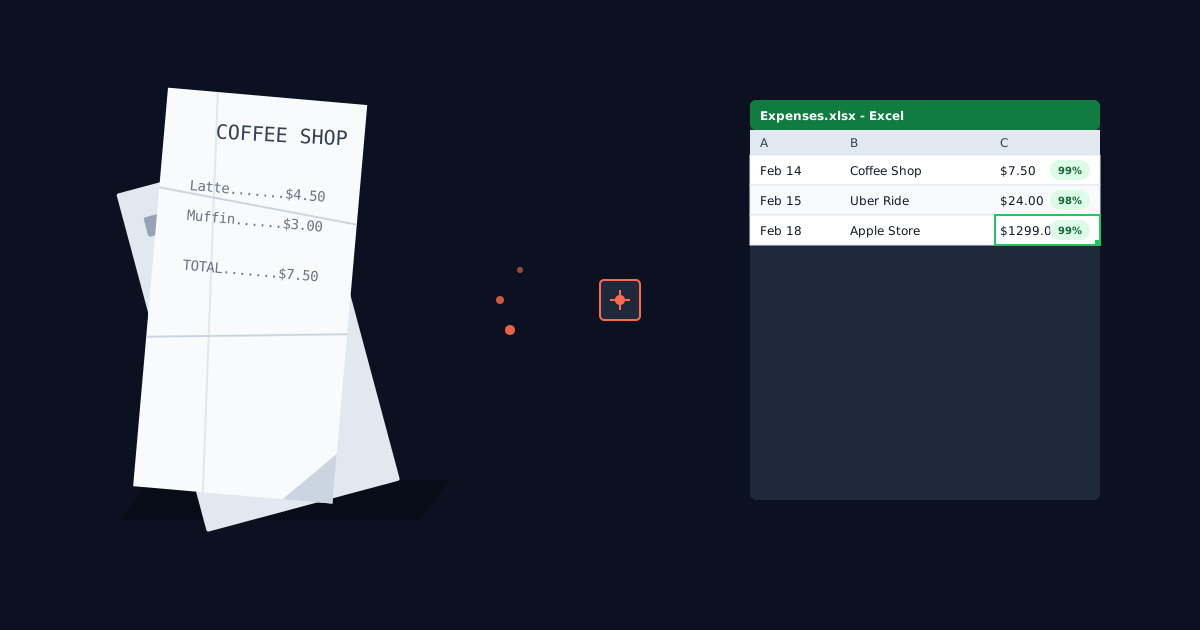
Tools like ParseField assign a confidence score to each extracted field. You see at a glance that 28 of 30 line items extracted with 95%+ confidence, and two items need verification. Instead of re-checking the entire invoice, you verify two values in 30 seconds. No other method—manual entry, generic converters, or basic financial tools—gives you this visibility into extraction accuracy.
Batch Processing
Month-end invoice processing rarely involves a single invoice. AI extraction tools let you upload 20, 50, or 100 invoices at once and process them in parallel. The output is either individual files per invoice or a consolidated spreadsheet, depending on how you need to import the data. For bookkeepers managing multiple clients, this turns a multi-hour task into a short review session. If you're already using batch workflows for bank statements, the same principle applies here—our guide to bulk financial document processing covers the operational details.
What to Look for in an Invoice Extraction Tool
Not all extraction tools handle invoices equally. When evaluating options, focus on these criteria:
Line-item extraction quality. Upload a test invoice with 10+ line items, multi-line descriptions, and a tax breakdown. If the output doesn't preserve each line item as a separate, complete row, the tool isn't built for invoice work.
Header field separation. Vendor name, invoice number, and dates should appear as labeled fields—not buried in the line-item table. You need these fields to create bills in your accounting software.
Export format compatibility. Excel (XLSX) is useful for review. CSV is what QuickBooks Online, Xero, and most cloud accounting platforms actually need for import. Make sure the tool exports both and that the CSV structure matches your accounting software's import requirements.
Batch upload support. Processing invoices one at a time defeats the purpose of automation. Look for tools that accept multiple PDFs in a single upload and process them in parallel.
Confidence scoring or error flagging. Any tool can claim high accuracy. A tool that tells you which specific fields might be wrong—and lets you verify just those—saves significantly more time than one that gives you a flat "98% accuracy" number with no way to find the 2% that's off.
Data security. Invoices contain vendor banking details, tax IDs, pricing terms, and payment information. At minimum, require TLS encryption, automatic file deletion after processing, and a published data handling policy. For GDPR-covered data, verify the tool's compliance documentation.
After Extraction: Getting Invoice Data into QuickBooks or Xero
Converting the PDF to Excel is only half the workflow. The extracted data needs to reach your accounting software in the right format.
QuickBooks Online
QuickBooks Online accepts CSV imports for bills and expenses. The required columns are Date, Vendor/Payee, and Amount. For line-item detail, each line becomes a separate row referencing the same bill, with an Account column for expense coding. QuickBooks Desktop supports IIF file imports or batch entry through the Accountant menu.
One common pitfall: QuickBooks expects a single Amount column. If your extraction tool outputs separate "Unit Price" and "Quantity" columns, you may need to add a calculated Amount column (quantity times unit price) before import—though most AI extraction tools include the line total as a standard field.
Xero
Xero accepts CSV imports with Date, Description, Amount, and Account columns. Xero handles multiple line items per bill natively and matches amounts against existing contacts when vendor names are consistent. If you also convert bank statements for the same clients, see our guide to importing PDF bank statements into Xero for the complete reconciliation workflow.
General Tips
Consistent vendor naming matters. If the extraction outputs "ACME Corp" on one invoice and "Acme Corporation" on another, your accounting software treats them as different vendors. Standardize vendor names in the spreadsheet before import, or set up vendor aliases in your accounting software.
Separate tax from line-item amounts. Some invoices embed tax in the line total; others list it separately. Know which format your accounting software expects and verify the extraction output matches before you import.
Verify the math. After extraction, sum the line-item amounts and compare to the invoice total. If they match, your data is clean. This takes 10 seconds in Excel with a SUM formula and catches any extraction or rounding errors before they reach your general ledger.
Converting PDF Invoices to Excel: The Bottom Line
Manual data entry works for low-volume practices but breaks down quickly as invoice volume grows. Generic converters save time on simple documents but create cleanup headaches with real-world invoices that have multi-line items, tax breakdowns, and scattered header fields.
AI-powered extraction handles the complexity that generic tools miss: line-item integrity, header field separation, format-agnostic processing, and confidence scoring that tells you exactly where to focus your review. For bookkeepers and AP clerks processing 20+ invoices per month, the time savings compound every billing cycle.
ParseField extracts line items, vendor details, tax breakdowns, and totals from any PDF invoice—with a confidence score on every field. Export to Excel or CSV, ready for QuickBooks or Xero.
Start with 30 free pages. No credit card required.
Try It Free →
Frequently Asked Questions
Can I convert PDF invoices to Excel with line items intact?
▼
Generic PDF-to-Excel converters usually dump all text into a flat table, breaking line-item structure. AI-powered invoice extraction tools parse each line item separately—capturing description, quantity, unit price, and amount as distinct columns in the output. This preserves the structure you need for coding expenses in QuickBooks or Xero.
How accurate is automated PDF invoice to Excel conversion?
▼
AI-powered extraction tools achieve 95-99% accuracy on clean digital PDFs, depending on invoice complexity. The remaining errors typically involve handwritten notes, unusual fonts, or low-quality scans. Tools with per-field confidence scoring let you spot uncertain values instantly rather than re-checking every field. Manual data entry averages a 1-4% error rate according to industry research.
What's the best format for importing invoice data into QuickBooks?
▼
QuickBooks Online accepts CSV imports for bills and expenses. You need columns for Date, Vendor, Amount, and optionally Description and Account. If your invoice has line items, each line becomes a separate row tied to the same bill. QuickBooks Desktop can import IIF files or use batch entry. Either way, starting with a clean Excel or CSV from your extraction tool makes the import straightforward.
Can I convert multiple PDF invoices to Excel at once?
▼
Batch processing is available in most AI-powered extraction tools. You upload a stack of PDF invoices, the tool processes them in parallel, and you export the results as individual Excel files or a single consolidated spreadsheet. This is essential for month-end when you're processing 20-50 vendor invoices at once rather than converting them one at a time.
Is it safe to upload client invoices to an online conversion tool?
▼
Only use tools with clear security policies. Look for TLS encryption during upload, automatic file deletion after processing, and GDPR compliance documentation. Avoid free consumer converters that don't disclose data retention practices. Vendor invoices contain banking details, tax IDs, pricing terms, and payment information—all of which carry compliance obligations for accounting professionals.