Bulk Bank Statement Processing: A Complete 2026 Guide
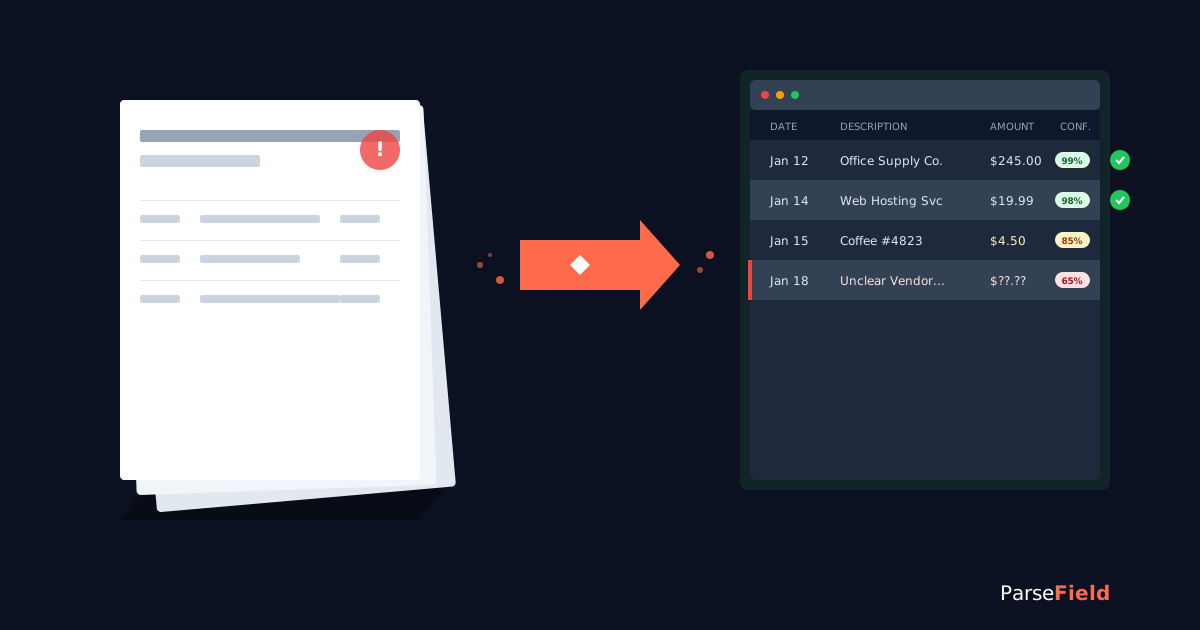
Imagine you manage 30 small business clients. Every month, you receive 50-70 bank statements—some as PDFs from online banking, some as scanned paper documents, and some across multiple accounts per client. Manually typing each transaction takes 20-30 minutes per statement. That's 16-35 hours of pure data entry work every single month.
Most bookkeepers and accountants spend their month-end close copying numbers from bank statements into spreadsheets or accounting software. It's slow, error-prone, and keeps you from doing actual accounting work. There's a better way.
This guide is for: Solo bookkeepers managing 10+ clients | Small accounting firms processing multi-client bank statements | In-house finance teams handling statements for multiple entities | Forensic accountants regarding historical statements | Tax preparers doing catch-up bookkeeping
In this guide: What bulk processing is | Cost of manual entry | How it works | What to look for | Real scenarios | FAQ
This guide explains how bulk bank statement processing works, what to look for in an automated solution, and real scenarios showing how accountants save 12+ hours monthly. You'll learn how confidence scoring helps you verify accuracy and how to choose between manual entry, basic converters, and AI-powered extraction.
Whether you're a solo bookkeeper, a small accounting firm, or an in-house finance team processing statements for multiple clients or entities, bulk processing can transform your workflow. If you want to skip manual entry entirely, you can try ParseField free with 30 pages to start and see confidence scoring on every field.
What Is Bulk Bank Statement Processing (and Why It Matters Now)
Bulk bank statement processing is the ability to upload multiple bank statements at once—PDFs, scanned images, or digital files—and automatically extract every transaction into a structured spreadsheet or accounting software format. Instead of processing statements one at a time, you handle 10, 50, or 100+ statements in a single batch.
This matters more now than ever before because most accounting software (QuickBooks, Xero, Sage) doesn't accept PDF bank statements directly. They require QBO, OFX, or CSV formats. Banks rarely provide those formats for historical statements or statements from closed accounts. That gap forces accountants into manual data entry or unreliable copy-paste workflows. Once extracted, you can export to Excel or CSV (see our guide on converting PDF bank statements to Excel for single-statement workflows) or push directly to QuickBooks in QBO format.
Bulk processing reduces statement entry time by 85-95%. A bookkeeper spending 15 hours monthly on bank statement entry can reduce that to 45-90 minutes.
This capability is essential for three common use cases:
- Monthly close for multi-client bookkeeping practices.
- Tax season catch-up when clients provide 6-12 months of statements at once.
- Forensic accounting or litigation support requiring hundreds of historical statements.
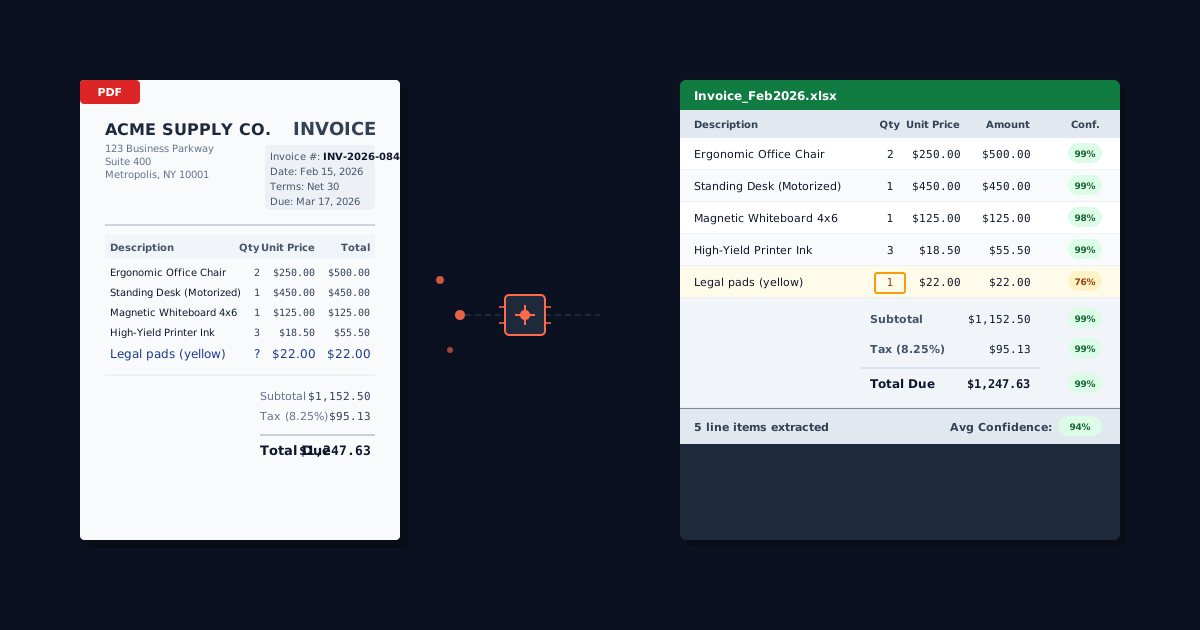
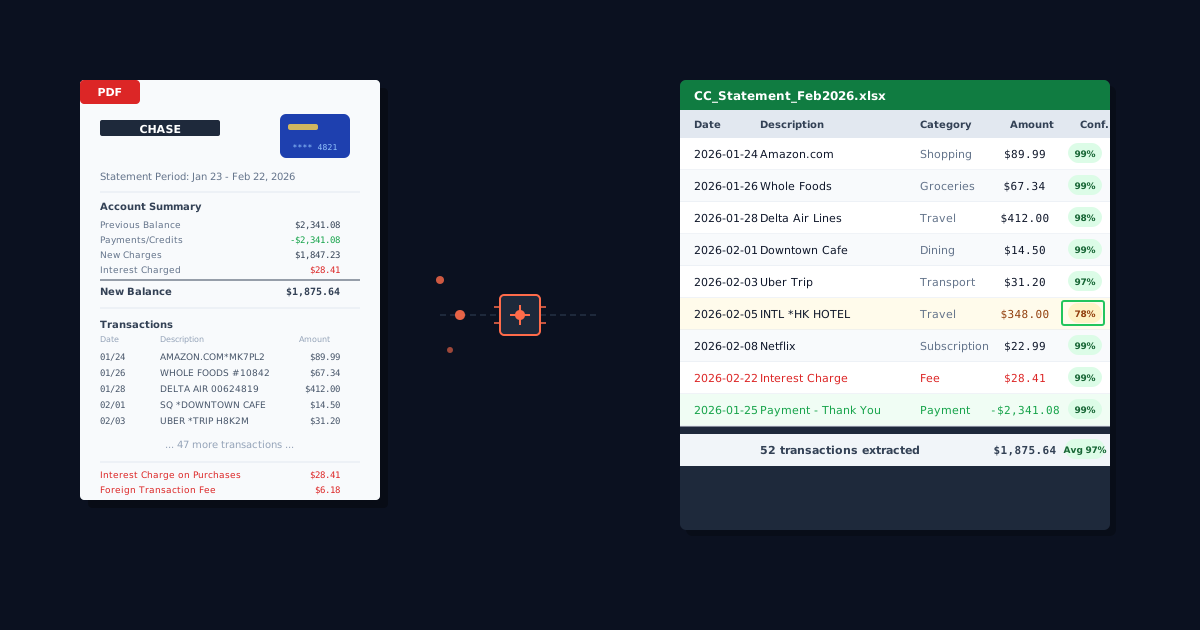
Automation only works if you can verify accuracy. That's why the best bulk processing tools show you confidence scores on every extracted field—not just a document-level accuracy claim. You need to know which specific transactions were read clearly and which need a second look.
Before diving into how bulk processing works technically, let's look at what it actually costs you to keep doing it manually.
The Real Cost of Processing Bank Statements Manually
Most accountants underestimate the true cost because they only count "typing time"—but there's more to it. The full cost includes time, errors, and opportunity cost.
Time Cost Breakdown for a Typical Bookkeeping Practice
Consider a solo bookkeeper managing 30 clients:
- Average of 2 bank accounts per client (checking + savings) = 60 statements/month
- Time per statement: 20-30 minutes (varies by transaction count; business checking accounts with 50+ transactions take longer)
- Total monthly time: 60 statements × 25 minutes average = 1,500 minutes = 25 hours
- At $50/hour (conservative bookkeeping rate): 25 hours × $50 = $1,250/month in labor cost
- Annual cost: $15,000 just for bank statement data entry
That 20-30 minutes per statement includes opening the PDF, cross-referencing the statement header (account number, date range), typing each transaction line (date, description, amount, category), handling split transactions, reconciling opening and closing balances, and dealing with OCR errors if you tried to copy-paste from a scanned PDF.
This time estimate assumes clean, digital PDFs. Scanned statements or poor-quality images can double the time per statement because you're deciphering numbers by hand.
Error Rates and Their Downstream Consequences
Manual data entry has an error rate of 1-5% depending on the study. For a bank statement with 50 transactions, that's 1-3 errors per statement on average. Common errors include transposed numbers ($1,250 entered as $1,520), missed transactions, duplicate entries, and incorrect date formatting.
Each error discovered later requires rework—finding the statement, locating the transaction, correcting the entry, and re-reconciling. Common manual entry errors include:
- Transposed numbers: $1,250 entered as $1,520 (off by $270)
- Missed transactions: Scrolled past a line, throwing off the reconciliation by $89.50
- Wrong date format: Entered 03/04/2026 instead of 04/03/2026 (March 4 vs April 3)
- Duplicate entries: Copy-pasted the same transaction twice
If you're preparing tax returns or financial reports, errors can cascade into incorrect balance sheets, cash flow statements, or tax calculations. Fixing errors found during an audit or tax review can cost 10x the original entry time.
Errors also erode client confidence. A bookkeeper who consistently delivers clean reconciliations earns referrals; one who requires frequent corrections loses clients.
Manual entry is expensive and error-prone. Bulk processing with AI extraction addresses both problems—but only if you can verify that the automation is accurate. Here's how it works.
How Bulk Bank Statement Processing Actually Works
All modern bulk processing tools follow a similar four-step workflow.
Step 1 — Upload Statements (PDF, Scanned, or Digital)
You select multiple files at once—typically through a web interface or desktop app. Some tools accept drag-and-drop, others support batch upload from cloud storage (Google Drive, Dropbox). Most tools handle PDFs (native digital or scanned), JPEG/PNG images of scanned statements, and TIFF files.
The best tools don't require templates or pre-configuration. They use AI to identify statement structure automatically—whether it's Chase, Bank of America, Wells Fargo, a regional credit union, or a scanned statement from 2019.
Files are encrypted during transfer (look for TLS 1.2+ encryption), processed on secure servers, and typically deleted within hours after extraction to comply with SOC 2 and GDPR standards.
Step 2 — AI Extraction with Field-Level Confidence Scoring
The tool reads each statement and extracts structured data: transaction date, description, debit/credit amounts, running balance, account holder name, account number, statement period, and opening/closing balances. This uses financial OCR combined with AI models trained on thousands of bank statement formats—learn more about how financial OCR works in our plain-English guide.
Each extracted field gets a confidence score from 0-100%. Fields scoring 90%+ are high confidence — safe to export. Fields scoring 70-89% are flagged for review (usually correct but worth a glance). Fields below 70% should be verified against the source document. This score tells you exactly which numbers to trust and which need verification.
Unlike older OCR tools that give you a spreadsheet with no indication of which values might be wrong, confidence scoring ensures you're not blindly trusting the automation.
Step 3 — Review Flagged Fields and Approve
You see a dashboard showing all extracted statements. Statements with high confidence (98%+ average across all fields) can be approved immediately. Statements with flagged fields show you exactly which transactions need attention—highlighted in amber or red in the interface.
Checking 5-10 flagged transactions takes 2-3 minutes versus 20-30 minutes to type the entire statement from scratch. You're verifying, not entering.
Step 4 — Export to Excel, CSV, or QuickBooks
Finally, you export the data to Excel (.xlsx) or CSV for further analysis, or export directly to QuickBooks-compatible formats (QBO, IIF). The exported file includes all extracted fields—dates, descriptions, amounts, confidence scores—organized in columns ready for import or analysis.
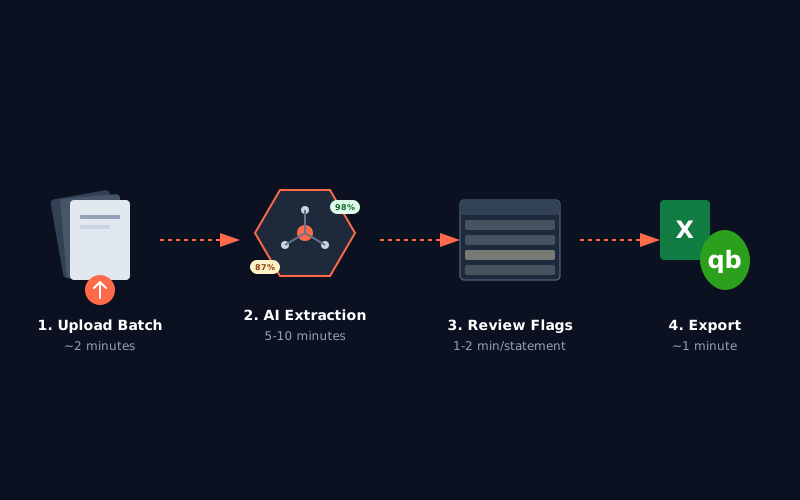
Want to see this workflow with your own statements? Upload a sample PDF and watch confidence scoring in action.
What to Look for in a Bulk Processing Solution
There are dozens of tools claiming to automate bank statement extraction, but most fall short in one of three critical areas: accuracy verification, accounting software compatibility, or handling real-world messy statements. Here's what actually matters.
Accuracy Verification You Can Actually See
Every tool advertises "99%+ accuracy" but that number is meaningless without context. Accuracy measured how—per character? Per transaction? Across all statement types or just clean digital PDFs? And what happens with the other 1%—how do you even know which transactions are in that error margin?
Look for field-level confidence scoring. The tool should show you a confidence score for every single extracted value. Not just a document-level score, but per-field transparency. This lets you route review intelligently—auto-approve high-confidence statements, quick-check medium-confidence fields, and carefully review low-confidence extractions.
For example, a statement with 50 transactions might show 48 transactions at 98%+ confidence (green, auto-approved), 1 transaction at 84% confidence (amber, flagged because the handwriting on the scanned check description was unclear), and 1 transaction at 65% confidence (red, needs manual verification because the amount was partially obscured). You know exactly where to focus your 30 seconds of review time.
Tools like ParseField show confidence scores on every field—dates, descriptions, amounts—so you're never guessing which numbers to trust.
Quick Comparison: Manual entry costs $16-25 per statement in labor but gives you 100% control. Basic OCR converters are cheap but give you no way to verify accuracy—errors only surface during reconciliation. AI with confidence scoring (ParseField) combines automation with transparency: 98%+ accuracy plus a score on every field so you know exactly what to trust.
| Feature | Manual Entry | Basic OCR Converter | Template-Based Tool | ParseField (AI + Verification) |
|---|---|---|---|---|
| Accuracy Rate | 95-99% (human) | 70-85% (no verification) | 85-92% (breaks on format changes) | 98%+ (with field-level verification) |
| Time per Statement | 20-30 minutes | 5-10 min review + fixes | 8-12 min setup + review | 1-2 min review (only flagged fields) |
| Bulk Capability | One at a time | Limited (3-5 max) | Yes (up to 50+) | Yes (unlimited) |
| Handles Scanned Statements | Yes | Poorly (high error rate) | No (templates only) | Yes |
| Error Visibility | Immediate (you typed it) | None (you discover later) | None | Confidence score on every field |
| Cost per Statement | Labor: $16-25 | Free-$3 | $2-5 | $0 (free tier) to $0.047/page (Pro) |
Accounting Software Integration (QuickBooks, Xero, Sage)
The extracted data is only useful if you can get it into your accounting software without reformatting. Does the tool export in QuickBooks-compatible formats (QBO, IIF, or CSV formatted for QuickBooks import)? Can it map extracted fields to your chart of accounts? Some tools export generic CSVs that require manual column mapping, date format conversion, or debit/credit restructuring before import, which defeats the purpose of automation.
Handling Scanned, Multi-Bank, and Messy Statements
Digital PDFs from online banking are the easy case. The real test is: Can the tool handle scanned paper statements (common for older records or clients who don't bank online)? Can it process statements from 500+ different banks and credit unions without requiring manual templates? Template-based tools fail here—they work great for Chase checking accounts (because that's what they were trained on) but break on a regional credit union's savings account statement with a different layout.
The best tools combine AI adaptability with confidence scoring transparency. You get accuracy verification plus the flexibility to handle any statement format.
ParseField shows you a confidence score on every extracted field—transaction dates, descriptions, amounts—so you know exactly which values to trust and which need a second look. No more blind faith in automation.
Start with 30 free pages. No credit card required. See confidence scoring in action.
Try It Free →
Bulk Processing in Practice — Three Accountant Scenarios
The time savings and error reduction sound good in theory, but here's what bulk processing looks like in three real accounting workflows.
Month-End Close for a 30-Client Bookkeeping Firm
You're a bookkeeping practice with 30 small business clients. Each client has 1-3 bank accounts. You receive 50-60 bank statements at the start of each month via email, client portal downloads, or scanned PDFs from clients who still bank on paper. Your goal: reconcile all accounts and deliver financial reports by the 10th of the month.
Manual workflow:
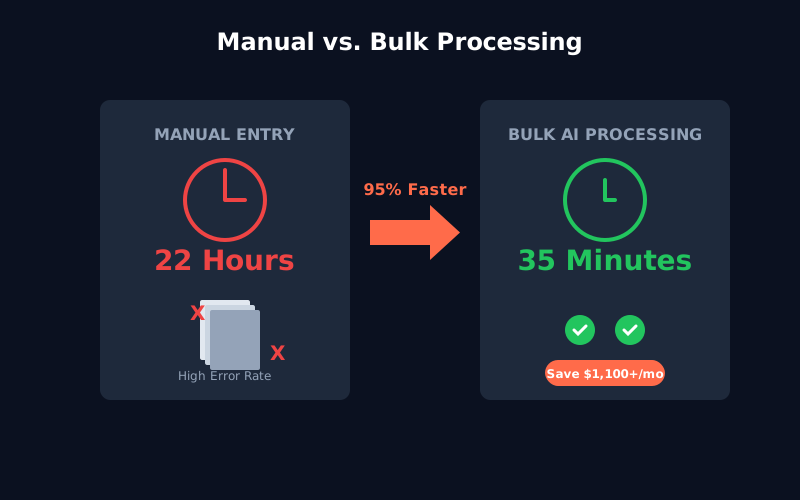
- 55 statements × 25 minutes = 1,375 minutes = 22.9 hours
- Spread across: 3-4 days of solid data entry work
- At $50/hour = $1,250 monthly labor cost
Bulk processing workflow with ParseField:
- Upload all 55 statements: 3 minutes
- Processing time: varies by document size and complexity
- Review: 48 auto-approved + 7 flagged × 2 min = 14 minutes
- Export and import to QuickBooks: 10 minutes
- Total time: under 2 hours
- Time saved: 22 hours → under 2 hours = 90%+ reduction
- Cost saved: $1,100+ per month
The 7 flagged statements were older scanned PDFs where certain handwritten check descriptions scored 75-85% confidence. You clicked into each statement, verified the flagged descriptions against the original PDF (visible side-by-side in the interface), corrected 2 descriptions, and approved the rest. That 14-minute review prevented 3 potential errors.
Tax Season Catch-Up with 6 Months of Statements
A client walks in during tax season with 6 months of unfiled bank statements (January-June, 2 accounts). They lost their bookkeeper mid-year and need catch-up work for their tax return. That's 12 statements with 40-60 transactions each.
Manual workflow:
- 12 statements × 30 minutes = 6 hours
- Typically billed: $300-360 (at $50-60/hour)
- Timeline: 1 full workday
Bulk processing workflow:
- Upload 12 PDFs: 1 minute
- Processing: varies by document size and complexity
- Review: 10 statements auto-approved, 2 statements flagged
- Fix flagged transactions: 5 minutes
- Export: 2 minutes
- Total time: well under an hour
- Hours freed up: 5+ hours for advisory work
Bulk processing doesn't just save time—it changes your pricing model. You can shift from hourly billing to value-based pricing because the deliverable (clean, reconciled statements) takes you well under an hour but delivers the same client value.
Forensic Review of 200+ Statements for Litigation Support
You're hired for forensic accounting on a business dispute. The opposing counsel requests 24 months of bank statements across 3 business accounts and 2 personal accounts. That's 120 statements (5 accounts × 24 months). You need to identify specific transaction patterns, flag unusual transfers, and prepare a summary report for the attorney.
Manual workflow:
- 120 statements × 35 minutes = 4,200 minutes = 70 hours
- Typically billed: $7,000-10,500
- Timeline: 2-3 weeks
Bulk processing workflow:
- Upload 120 statements: 5 minutes
- Processing: varies by document size and complexity
- Export raw data: 2 minutes
- Analysis (pivot tables/filtering): 15 hours
- Total time: 15.5 hours
- Time saved for data entry: 54.5 hours
Bulk processing doesn't just save data entry time—it converts unstructured PDFs into analyzable data. You can now use Excel pivot tables, filters, and formulas to find patterns that would take days to spot by reading statements manually.
These three scenarios show bulk processing at different scales—monthly recurring work, one-off catch-up projects, and large forensic engagements. The time savings are real, measurable, and consistent.
Conclusion
Bulk bank statement processing transforms data entry from a 20-hour monthly burden into a fraction of that time. The technology works—98%+ extraction accuracy on clean PDFs, 92-96% on scanned statements—but only if you can verify which fields to trust. Confidence scoring makes automation trustworthy.
- Manual entry costs $1,100-1,500/month for a typical 30-client bookkeeping practice; bulk processing reduces that to under $40/month.
- The review workflow with confidence scoring takes 1-2 minutes per statement versus 20-30 minutes for manual entry.
- The time saved isn't just faster processing—it frees up hours for advisory work, tax planning, and higher-value services.
If you're processing more than 10 bank statements per month, automation will save you 10+ hours monthly. The question isn't whether to automate—it's whether you trust the automation. Confidence scoring is the difference between hoping the extraction is correct and knowing which fields are correct. That certainty is worth everything when you're signing off on a client's books.
Stop Copying Bank Statements by Hand
ParseField extracts line items from your bank statements with 98%+ accuracy—and shows you a confidence score on every single field so you know exactly which numbers to trust. Process 50+ statements in minutes instead of hours. Start free with 30 pages. No setup fees. No credit card. Cancel anytime.
Start For Free →
Frequently Asked Questions
How accurate is bulk bank statement processing compared to manual entry?
▼
AI-powered extraction typically achieves 98%+ accuracy on clean digital PDFs and 92-96% on scanned statements. Manual entry averages 95-99% accuracy but takes 20-30 minutes per statement. The key difference: automated extraction with confidence scoring shows you exactly which fields need verification, while manual entry errors are only discovered during reconciliation or audits. You're not choosing between accuracy and speed—you're choosing between blind trust in manual work versus verified automated extraction. The difference: manual errors cost 10x to fix when discovered during audits; automated errors with confidence scoring are caught before export.
Will this work on scanned statements from a photocopier?
▼
Yes, modern AI-based tools process scanned paper statements, photographed statements, and even partially damaged or coffee-stained PDFs. The extraction accuracy depends on image quality—clear 300 DPI scans perform at 96%+ accuracy, while low-resolution phone photos might drop to 85-90%. Tools with confidence scoring will flag low-quality sections for review. Older template-based OCR tools struggle with scanned statements because they rely on exact formatting matches.
Can I upload the results straight into QuickBooks?
▼
Most bulk processing tools export in accounting-software-compatible formats. For QuickBooks Desktop, look for QBO or IIF export. For QuickBooks Online, use CSV formatted with the required columns (Date, Description, Amount). For Xero, use CSV or direct API integration if the tool offers it. ParseField exports to Excel and CSV formats that can be imported directly into QuickBooks, Xero, Sage, or any accounting software that accepts CSV transaction files. The export includes all required fields: date, description, debit/credit amounts, and running balance.
What's confidence scoring and why should I care?
▼
Confidence scoring assigns a 0-100% score to every extracted field (date, description, amount) based on how clearly the AI could read that value from the PDF. Fields scoring 90%+ are high confidence — safe to export. Fields scoring 70-89% are flagged for review — usually correct but worth a glance. Fields below 70% should be verified against the source document. This matters because it eliminates the "black box" problem: instead of trusting automation blindly, you know exactly which transactions to verify. Only ParseField and a few enterprise-grade tools offer field-level confidence scoring; most competitors only provide document-level accuracy percentages.
Is it safe to upload bank statements to an online processing tool?
▼
Reputable tools encrypt files during upload (TLS 1.2+ encryption), process them on SOC 2 compliant or GDPR-certified servers, and automatically delete files within hours after extraction. Look for tools that explicitly state their security standards—GDPR compliance, SOC 2 Type II certification, and automatic file deletion policies. ParseField encrypts uploads, processes on secure servers, and deletes files automatically after extraction. Learn more about how ParseField handles data security and encryption in our financial document security guide.
How much does bulk bank statement processing cost?
▼
Pricing varies by tool and volume. Manual entry costs $16-25 per statement in labor (at $50/hour for 20-30 minutes). Basic OCR converters charge $1-3 per page. Enterprise tools charge $2-5 per statement with monthly minimums. ParseField offers a free tier with 30 pages to start at $0, a Starter plan at $29/month ($23/month billed annually) covering 250 pages per month ($0.092/page), and a Pro plan at $89/month ($71/month billed annually) covering 1,500 pages per month ($0.047/page). For a bookkeeper processing 60 statements monthly, the Pro plan costs $89/month versus $1,500/month in manual labor. View all plans at parsefield.com/pricing.
Can I process statements from different banks in the same batch?
▼
Yes, AI-powered tools automatically identify statement formats regardless of the issuing bank. You can upload statements from Chase, Bank of America, Wells Fargo, credit unions, and international banks in the same batch—the tool detects the layout, extracts the data, and outputs a unified format. Template-based tools require separate processing runs for each bank format because they rely on pre-configured templates. This flexibility is critical for multi-client bookkeeping practices where every client banks differently.
What happens if the tool misreads a transaction amount?
▼
With confidence scoring, misread amounts are flagged before you export. Any amount scoring below 70% is highlighted for manual correction; fields between 70–89% are flagged for a quick review.
Example: A bookkeeper uploads 50 statements. ParseField flags 3 transactions across 2 statements (83% and 67% confidence). The interface shows the original PDF side-by-side with the extracted data. She sees the 83% transaction is correct (just slightly blurry text) and approves it. The 67% transaction has a typo—$1,520 extracted but the PDF clearly shows $1,250. She corrects it directly in the interface and approves. Total review time: 45 seconds for 50 statements.