How to Convert Receipts to Spreadsheets: Complete Guide
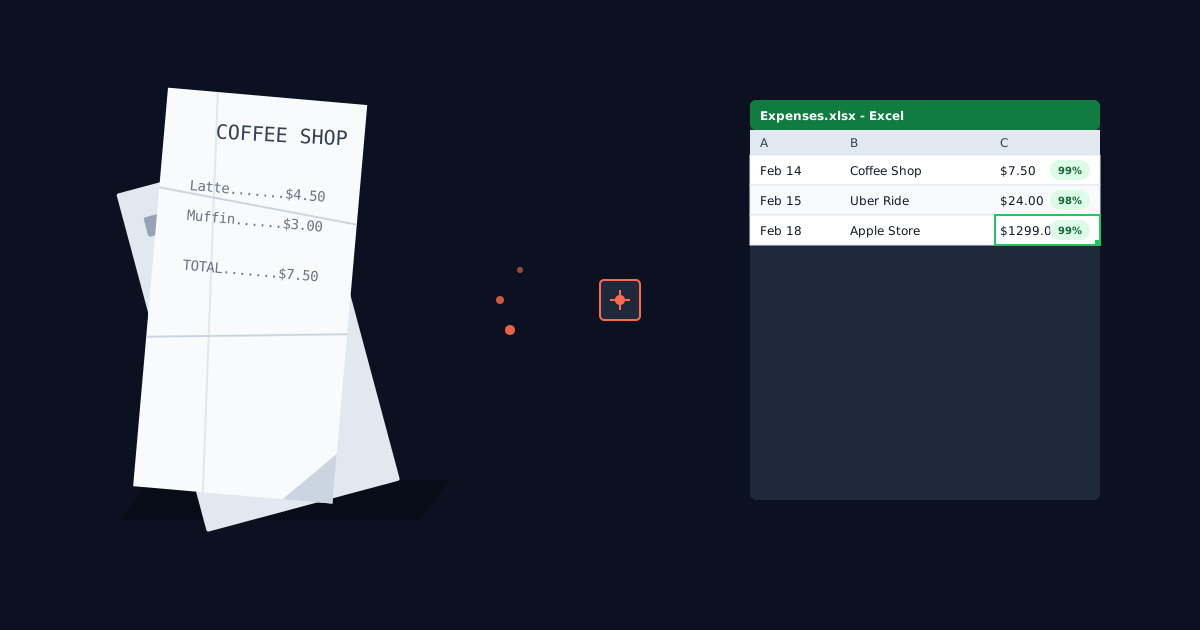
You're sitting at your desk with a shoebox full of crumpled receipts from the past quarter. Tax season is two weeks away. Each receipt needs to be manually entered into a spreadsheet — vendor name, date, amount, category, tax. At 5-10 minutes per receipt, you're looking at 8-12 hours of tedious data entry for just 100 receipts.
Manual receipt entry is slow, error-prone, and expensive. Small businesses spend an average of $3,100 annually on tax preparation, with roughly 40% of that time attributed to organizing receipts and expense records. One study found that 23% of manually entered expense reports contain errors — meaning nearly 1 in 4 receipts you type by hand will have a wrong amount, incorrect date, or mistyped vendor name.
This guide compares five methods to convert receipts to spreadsheets — from free Excel templates to AI-powered extraction tools. You'll see the accuracy rate, time required, and cost for each approach. By the end, you'll know exactly which method fits your business size and receipt volume. If you're also dealing with bank statements, see our guide on how to convert bank statements from PDF to Excel. For vendor invoices with line items and tax breakdowns, see our guide on converting PDF invoices to Excel.
If you process more than 20 receipts per month and want to skip the manual work entirely, you can try ParseField free with up to 30 pages — no credit card required.
The Real Cost of Manual Receipt Entry
Manual receipt entry takes an average of 5-8 minutes per receipt for basic data (vendor, date, amount). If you're categorizing expenses for tax deductions or tracking project-specific costs, add another 2-3 minutes per receipt.
For a bookkeeper charging $25/hour, processing 100 receipts manually costs $125-200 in labor. For a small business owner who values their time at $50/hour, that same batch costs $250-400. These costs compound monthly.
Studies show 23% of manual expense reports contain at least one data entry error. Across 100 receipts with an average of 5 fields each (date, vendor, amount, category, tax), that's 500 data points — and roughly 115 errors entering your spreadsheet. Wrong amounts mean incorrect tax deductions. Wrong dates mean missed quarterly filing deadlines. Wrong vendor names break expense tracking by client or project.
Every hour spent typing receipts is an hour not spent on higher-value work — client advisory, business development, or financial analysis. For accounting firms and bookkeeping practices, receipt entry doesn't generate billable revenue but still consumes staff time.
The IRS requires substantiation for business expense deductions. Missing receipts or incorrect amounts can trigger adjustments during an audit. One study found that missing deductions cost small businesses an average of $1,800 per year in overpaid taxes, while inadequate documentation during audits results in disallowed deductions.
The question isn't whether to automate receipt conversion — it's which method matches your accuracy requirements and budget.
5 Methods to Convert Receipts to Spreadsheets
Here are five methods to convert receipts into spreadsheets, ranked from most manual to most automated. Each has specific use cases.
Method 1: Manual Entry with Free Templates
Download a free Excel or Google Sheets receipt tracker template with pre-built columns for date, vendor, amount, category, payment method, and notes. You type each receipt's information into a new row.
- Pros: Zero software cost. Complete control over data entry. Works offline. No learning curve.
- Cons: Slow — 5-8 minutes per receipt. High error rate (23% of manual entries contain mistakes). Doesn't scale beyond 10-20 receipts per month.
- Best for: Individuals with under 10 receipts per month, or anyone who needs to categorize expenses with very specific custom tags that no software supports.
Method 2: Excel's Built-in "Data from Picture" Feature
Microsoft Excel (Windows and Mac, Office 365 subscription required) includes a "Data from Picture" tool. You take a photo of your receipt or import a scanned image, and Excel extracts the data into cells. You then review and correct any misreads.
- Pros: No additional software required if you already have Excel. Processes one receipt in 1-2 minutes. Free with existing Office subscription.
- Cons: Accuracy varies widely — works well on clean printed receipts, struggles with handwritten notes, faded thermal paper, or poor lighting. No batch processing — you must upload one receipt at a time. No confidence scoring, so you can't tell which extracted fields need review.
- Best for: Excel users processing 10-30 receipts per month with mostly clean, printed receipts.
Method 3: Mobile Receipt Scanning Apps
Dedicated mobile apps like Expensify, Receipts by Wave, Shoeboxed, or similar tools let you photograph receipts with your phone. The app extracts vendor, date, amount, and sometimes line items, then exports to Excel or CSV.
- Pros: Convenient — capture receipts immediately after purchase. Most offer categorization and mileage tracking. Export to Excel, QuickBooks, or Xero. Processing time: 30-60 seconds per receipt after photo upload.
- Cons: Monthly subscription costs ($5-15/month for 10-100 receipts). Accuracy ranges from 85-95% depending on the app and receipt quality. Limited control over output format. Some apps require manual review queues for flagged extractions.
- Best for: Freelancers and small business owners processing 20-100 receipts per month who want mobile convenience.
Method 4: AI-Powered OCR with Field-Level Verification
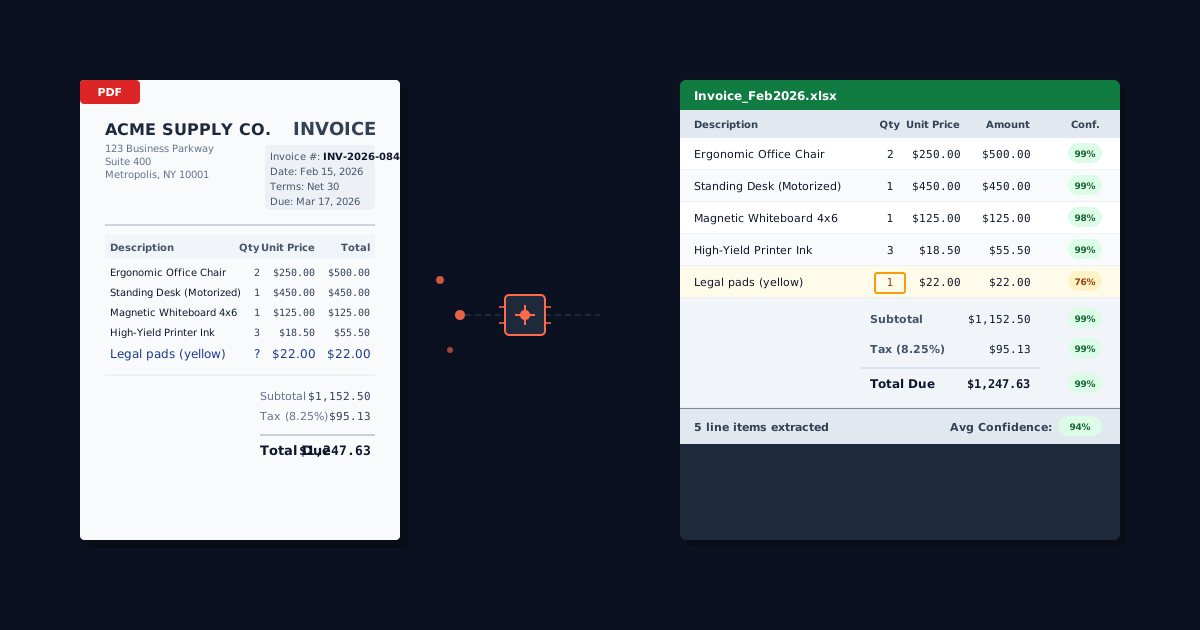
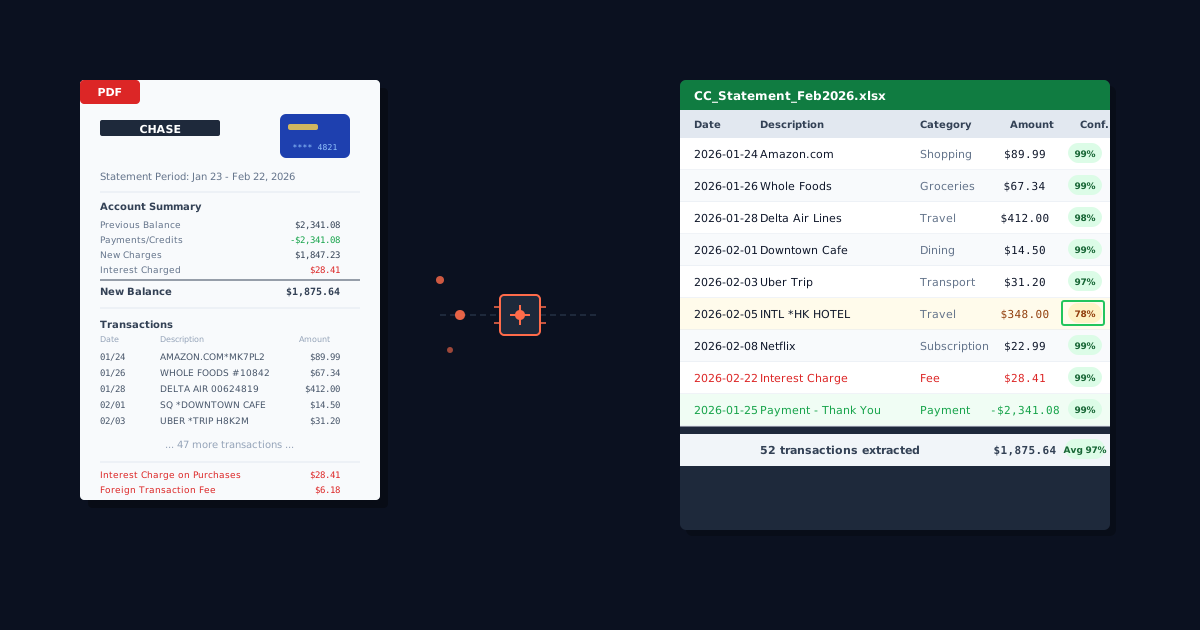
Advanced OCR tools use AI trained specifically on financial documents. These extract not just top-level data (vendor, date, total) but individual line items, tax amounts, and payment methods. Critically, they show a confidence score on each extracted field — so you know which values to trust and which to double-check. To understand how OCR works for financial documents, check out our plain-English guide.
- Pros: Highest accuracy (97-99% on clean documents). Batch upload capability — process 50-500 receipts at once. Field-level confidence scoring lets you prioritize review time on uncertain extractions only. Handles PDF, JPG, PNG, and scanned images.
- Cons: Requires a subscription. Pricing typically per-page or per-receipt.
- Best for: Bookkeepers, accountants, and businesses processing 50-500+ receipts per month who need audit-ready accuracy.
ParseField extracts receipts to Excel with 98%+ accuracy and shows a confidence score on every field. The free tier includes 30 pages to start at $0. Paid plans start at $29/month ($23/month billed annually) for 250 pages per month.
Method 5: Accounting Software with Built-in Receipt Capture
QuickBooks, Xero, FreshBooks, and similar platforms include receipt capture features. You email or upload receipt images, and the software extracts data directly into expense transactions.
- Pros: Fully integrated workflow — extracted data flows directly into your accounting ledger. No need to export/import spreadsheets. Automatic expense categorization based on vendor history.
- Cons: Requires an existing accounting software subscription ($15-70/month). Extraction accuracy varies by platform. Less flexibility if you need raw spreadsheet exports for custom analysis. Limited batch processing.
- Best for: Businesses already using accounting software who want end-to-end expense tracking without intermediate spreadsheet steps.
| Feature | Manual Entry | Excel "Data from Picture" | Mobile Apps | AI OCR + Verification | Accounting Software |
|---|---|---|---|---|---|
| Confidence Scoring | N/A | ❌ No | Wait/Rare | ✅ Yes — score on every field | ❌ No |
| Accuracy Rate | 77% (23% error rate) | 80-85% | 85-95% | 97-99% | 90-95% |
| Speed per Receipt | 5-8 minutes | 1-2 minutes | 30-60 seconds | A few minutes | 30-90 seconds |
| Batch Processing | ❌ No | ❌ No | Limited (10-20) | ✅ Yes (50-500+) | Limited (10-50) |
| Cost | Free | Free (w/ Office 365) | $5-15/month | Free tier; $29-159/mo | $15-70/month |
| Best For | <10 receipts/mo | 10-30 receipts/mo | 20-100 receipts/mo | 50-500+ receipts/mo | Business w/ Accounting Software |
ParseField shows you a confidence score on every extracted field — not just a document-level accuracy estimate. You know exactly which vendor names, amounts, dates, and line items to trust, and which ones need a quick review.
Start with 30 free pages. No credit card required. Process your first receipts in minutes.
Try It With Your Own Receipts →
Why Accuracy Matters More Than Speed
A tool that processes 100 receipts in 10 minutes but extracts data at 85% accuracy just created 75 errors in your spreadsheet. A tool that takes 30 minutes at 98% accuracy creates only 10 errors. You'll spend far less time fixing 10 errors than 75.
Most receipt scanning tools advertise 'accuracy' as a single percentage — often 90-95%. But that's typically a page-level score: did the tool extract something from the receipt? It doesn't tell you which specific fields are correct. A receipt might have 10 data points: vendor name, date, subtotal, tax, tip, total, payment method, last 4 digits of card, category, and transaction ID. If 9 are correct but the total amount is wrong, page-level accuracy is 90%. Your bookkeeping is still wrong.
For 100 receipts with an average of 8 fields each, that's 800 data points. At 95% accuracy, 40 fields contain errors. At 98% accuracy, only 16 fields are wrong. At 99% accuracy, just 8 errors. The difference between 95% and 99% is whether you spend 2 hours or 30 minutes on review and correction.
Not all errors are equal. A wrong date might shift an expense from Q4 to Q1, affecting quarterly tax estimates. A wrong vendor name breaks expense tracking by client or project. A wrong amount — especially on large transactions — can trigger IRS questions during an audit. A misread payment method matters if you're reconciling credit card statements.
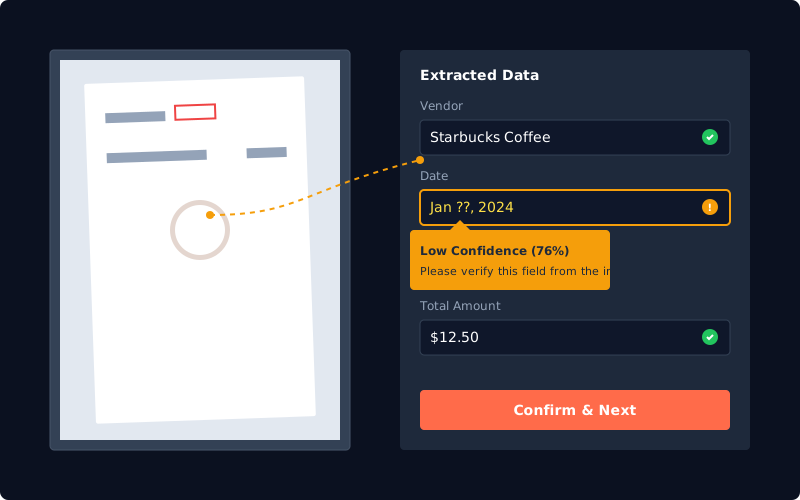
Field-level confidence scoring solves this. Instead of trusting every extracted value equally, the system shows you a confidence percentage for each field. If the vendor name is 99% confident but the date is only 72% confident, you know to verify the date but trust the vendor. This cuts review time by 60-80% because you're not checking fields the system already validated with high certainty.
Imagine extracting 50 grocery store receipts for a catering business. Line items (individual ingredients) matter for COGS tracking. A tool without confidence scoring forces you to check all 500+ line items manually. A tool with field-level scoring might flag 30 line items as 'needs review' and mark the other 470 as 98%+ confident. You just saved 4 hours.
Speed matters. But accuracy determines whether your books are correct, your tax deductions are defensible, and your financial reports reflect reality. Choose tools that let you verify accuracy, not just trust it.
How to Verify Your Extracted Data
Even the best OCR tools make mistakes. Faded receipts, handwritten notes, crumpled paper, poor lighting, and unusual fonts all reduce accuracy. Here's how to verify extracted data efficiently.
- Start with high-value transactions. Sort your extracted spreadsheet by amount, descending. Verify the top 10-20% of receipts first — these represent 60-80% of your total expense value. A $500 receipt with a wrong amount costs you far more than a $5 coffee receipt.
- Check confidence scores if available. If your tool provides field-level confidence scoring, filter for fields below 85% confidence and review those first. This cuts verification time by 60% because you're only checking uncertain extractions.
- Cross-reference totals against source documents. For each receipt, confirm the extracted total matches the receipt total exactly. Misread decimals are common — $45.67 might extract as $4.67 or $456.70. These errors break your entire expense report.
- Verify dates and vendor names for tax compliance. The IRS requires receipts to show date, amount, and vendor for deductions above $75. Misread dates can shift expenses into the wrong tax year. Misread vendor names can break audit trails if you're asked to substantiate expenses by category.
- Spot-check line items on itemized receipts. If you're claiming meal expenses or office supplies, the IRS may ask for line-item detail during an audit. Verify that line items match the receipt, especially if you're categorizing some items as deductible and others as personal.
- Reconcile extracted data against bank or credit card statements. Your total extracted expenses for a given month should match your statement charges. A 5-10% variance signals systematic extraction errors — perhaps sales tax isn't being captured, or tips are missing.
Plan to spend 5-15% of your total processing time on verification. If automated extraction saves you 8 hours on 100 receipts (versus manual entry), expect to spend 30-60 minutes verifying the output. You're still saving 7 hours.
Verification isn't optional if your books need to be audit-ready. But field-level confidence scoring makes verification efficient by telling you exactly where to focus.
Best Method by Business Size and Receipt Volume
The right method depends on how many receipts you process monthly and what accuracy level you need. Here's a simple decision framework.
Under 20 Receipts per Month
If you're processing fewer than 20 receipts monthly — typical for freelancers, solo consultants, or very small businesses — manual entry or Excel's built-in "Data from Picture" tool makes sense.
Download a free Excel receipt tracker template. Spend 10-15 minutes once per week entering receipts from that week. This costs you roughly 3-4 hours annually — not enough to justify a paid subscription.
If you're already an Office 365 subscriber, use Excel's "Data from Picture" feature to cut data entry time in half. Expect to verify 20-30% of extracted fields.
20-100 Receipts per Month
This volume range represents most small businesses, freelancers with active client work, and bookkeepers managing 2-5 small clients.
Use a mobile receipt scanning app ($5-15/month) or a dedicated OCR tool with a free tier. These cut processing time from 2-3 hours per month to 15-30 minutes.
ParseField's free tier includes 30 pages to start at $0. The Starter plan ($29/month, or $23/month billed annually) includes 250 pages per month. For 30-50 receipts per month, you're processing them in under 20 minutes total, with field-level confidence scoring showing exactly which fields need verification.
If you're already using QuickBooks or Xero, enable their receipt capture features. You'll pay for the accounting software anyway, so the marginal cost is zero.
100+ Receipts per Month
Processing 100+ receipts monthly is common for multi-employee businesses, accounting firms with multiple clients, or bookkeepers during tax season.
You need batch processing and high accuracy. Manual entry would consume 8-15 hours per month — that's $200-375 in labor cost at $25/hour, or $400-750 if your time is worth $50/hour.
AI-powered OCR with field-level verification is the only scalable option. Look for tools that support batch upload (50-500 files at once), provide confidence scoring, and export to Excel or CSV.
ParseField's Pro plan ($71/month billed annually) includes 1,500 pages per month with batch upload. At $0.047 per page, you're processing receipts at a fraction of manual entry cost while maintaining 98%+ accuracy. See ParseField's pricing for detailed plan comparisons.
Conclusion
Converting receipts to spreadsheets doesn't have to mean hours of manual data entry. The five methods in this guide range from free manual templates (best for under 10 receipts/month) to AI-powered OCR with verification (best for 100+ receipts/month).
Accuracy matters more than speed. A tool that processes receipts quickly but creates dozens of errors will cost you more time in corrections than a slightly slower tool with 98%+ accuracy and field-level confidence scoring.
For 100 receipts per month, automated extraction saves 6-10 hours compared to manual entry — that's $150-500 in labor cost monthly, or $1,800-6,000 annually.
Choose the method that matches your receipt volume and accuracy requirements. Your books will be more accurate, your tax prep faster, and your time freed up for higher-value work.
Stop Copying Receipt Numbers by Hand
ParseField extracts receipts to Excel with 98%+ accuracy and shows you a confidence score on every field — so you know exactly which vendor names, amounts, and dates to trust. Start free with 30 pages. No setup fees. No credit card required.
Extract Your First Receipt Free →
Frequently Asked Questions
Can I scan a receipt into Excel for free?
▼
Yes. Microsoft Excel's "Data from Picture" feature (included with Office 365) lets you photograph or upload receipt images and extract data into cells. Accuracy ranges from 80-85% depending on receipt quality, and you'll need to verify extracted fields manually. Alternatively, use a free Excel receipt tracker template and enter data manually — slower but zero cost.
What's the most accurate way to convert receipts to spreadsheets?
▼
AI-powered OCR tools trained on financial documents achieve 97-99% accuracy, significantly higher than mobile apps (85-95%) or Excel's built-in tool (80-85%). The most accurate tools provide field-level confidence scoring, showing you exactly which extracted values are certain and which need verification. ParseField extracts receipts at 98%+ accuracy with a confidence score on every field.
How long does it take to scan 100 receipts into a spreadsheet?
▼
Manual entry: 8-13 hours. Excel's "Data from Picture": 2-3 hours. Mobile scanning apps: 1-2 hours. AI OCR with batch processing: 20-40 minutes including upload and verification time. The fastest method is batch uploading all receipts at once to an OCR tool, then verifying flagged fields based on confidence scores.
Do receipt scanning apps work with handwritten receipts?
▼
Accuracy drops significantly on handwritten receipts. Most OCR tools achieve 97-99% on printed receipts but only 60-75% on handwriting. Faded thermal paper receipts (common from gas stations and grocery stores) also reduce accuracy. If you frequently receive handwritten receipts, choose a tool with field-level confidence scoring so you can identify uncertain extractions and verify them manually.
Is automated receipt extraction audit-compliant for tax purposes?
▼
Yes, if you retain the original receipt images. The IRS requires substantiation for business expense deductions: receipts must show the date, amount, vendor, and business purpose. Extracting receipt data to Excel is acceptable as long as you keep the original receipt images as backup documentation. Many OCR tools automatically archive receipt images alongside extracted data. ParseField encrypts and stores receipt images securely, with automatic deletion after a specified retention period if you choose.