How to Convert Credit Card Statement PDFs to Excel
Every month, you download credit card statements as PDFs, open Excel, and start retyping transaction dates, merchant names, and amounts. One client has an Amex, another uses Chase, a third has a Capital One card for business expenses. Each issuer formats its statement differently. Each statement has 40-80 transactions. And each one takes 15-30 minutes of manual data entry before you can even begin reconciliation.
Credit card statements are harder to convert than bank statements. They include interest charges, annual fees, foreign transaction fees, rewards adjustments, and payment credits mixed in with regular purchases. A bank statement has debits and credits in clean columns. A credit card statement buries fees across multiple sections, uses positive amounts for charges and negative amounts for payments, and wraps merchant names across multiple lines.
This guide covers three methods to convert credit card statement PDFs to Excel or CSV, ranked by speed and accuracy, so you can pick the approach that fits your practice.
Why Credit Card Statements Are Harder Than Bank Statements
If you've already figured out a workflow for converting bank statement PDFs to Excel, you might assume credit card statements work the same way. They don't, and the differences matter for reconciliation.
Format Varies by Issuer
Chase statements use a non-standard 7.25" x 14" page size designed for their mailing envelopes. Amex groups transactions by card member when multiple authorized users share an account. Capital One separates purchases, payments, and fees into distinct sections with different column structures. Discover inserts cashback reward summaries between transaction tables.
A single bookkeeping client with three credit cards means three completely different PDF layouts to parse. Template-based converters break every time an issuer updates their statement design, which happens more often than you'd expect.
Interest, Fees, and Adjustments Need Separate Treatment
Bank statement transactions are mostly straightforward: money in, money out. Credit card statements add layers of complexity:
- Interest charges appear as line items but need to map to an interest expense account, not the regular expense categories
- Annual fees and late payment fees require their own GL codes
- Foreign transaction fees (typically 1-3% per transaction) sometimes appear as separate line items and sometimes get bundled into the transaction amount
- Payment credits and returns use negative amounts, which generic converters often mishandle
- Balance transfer fees and cash advance fees need distinct categorization
When you retype these manually, you mentally sort each line into the right bucket. When a generic converter dumps everything into a single "amount" column, you lose that context and spend time re-sorting afterward.
Statement Cycles Don't Match Fiscal Months
Most bank statements run calendar month to calendar month. Credit card statement cycles close on the 15th, 22nd, 28th, or some other mid-month date, depending on the issuer and account. If your client's Chase card closes on the 22nd, eight days of February transactions won't appear until the March statement.
This means credit card reconciliation often requires splitting transactions across accounting periods—a detail that matters when you're doing month-end close and the totals need to tie out.
Method 1: Manual Copy-Paste from the PDF
The zero-cost option. Open the credit card statement PDF on one monitor, open Excel on the other, and start typing.
How It Works
- Open the PDF statement
- Highlight the transactions table
- Copy and paste into Excel
- Spend 20-40 minutes fixing formatting: merged cells, split descriptions, amounts that pasted as text instead of numbers
The Reality
Credit card statements are formatted for cardholders to read, not for data extraction. When you copy-paste from an Amex PDF, the merchant name, reference number, and amount often land in a single cell. Multi-line descriptions (like hotel charges with dates and confirmation numbers) split into separate rows, breaking your table structure.
Manual data entry has a documented error rate of 1-4%, according to research compiled by Conexiom. On a statement with 60 transactions, that's 1-2 errors per statement. A transposed digit on a $1,250 charge that becomes $1,520 is a $270 discrepancy you won't catch until reconciliation—if you catch it at all.
When It Makes Sense
Only if you're processing fewer than 3 credit card statements per month and each has under 20 transactions. For anything beyond that, the labor cost exceeds the cost of a dedicated tool.
Method 2: Generic PDF-to-Excel Converters
Tools like Smallpdf, ILovePDF, and Adobe's built-in export function attempt to convert any PDF into a spreadsheet. They work by detecting table-like structures on the page and mapping them to Excel cells.
How It Works
Upload the PDF, wait 10-30 seconds, download an XLSX file.
The Reality
These tools are designed for general PDFs—reports, invoices, product catalogs. They don't understand financial document structure. With credit card statements specifically, you'll encounter several problems:
- Merged sections: the "Payments and Credits" section runs into the "Purchases" section, creating a jumbled mess
- Fee confusion: interest charges, late fees, and regular transactions appear in a single undifferentiated column
- Sign errors: payments (credits) and charges (debits) both appear as positive numbers with no way to distinguish them
- Missing data: footer totals, previous balance, and new balance fields are often dropped entirely
- Foreign currency: transactions with currency conversion notes get mangled because the converter doesn't know what to do with "USD $45.00 (EUR 41.23)" on a single line
Cleaning up the output typically takes 10-20 minutes per statement, which cuts into the time you thought you were saving.
Security Concerns
Credit card statements contain account numbers, full transaction histories, and spending patterns. Free online converters rarely disclose where they store uploaded files, how long they retain them, or who has access. For a bookkeeper handling client financial data, this is a compliance liability. Your engagement letter likely promises data protection standards that free converter services can't guarantee.
When It Makes Sense
For non-financial PDFs, these tools work well. For credit card statements with complex layouts, fees, and sensitive data, they create more cleanup work than they prevent.
Method 3: AI-Powered Financial Extraction
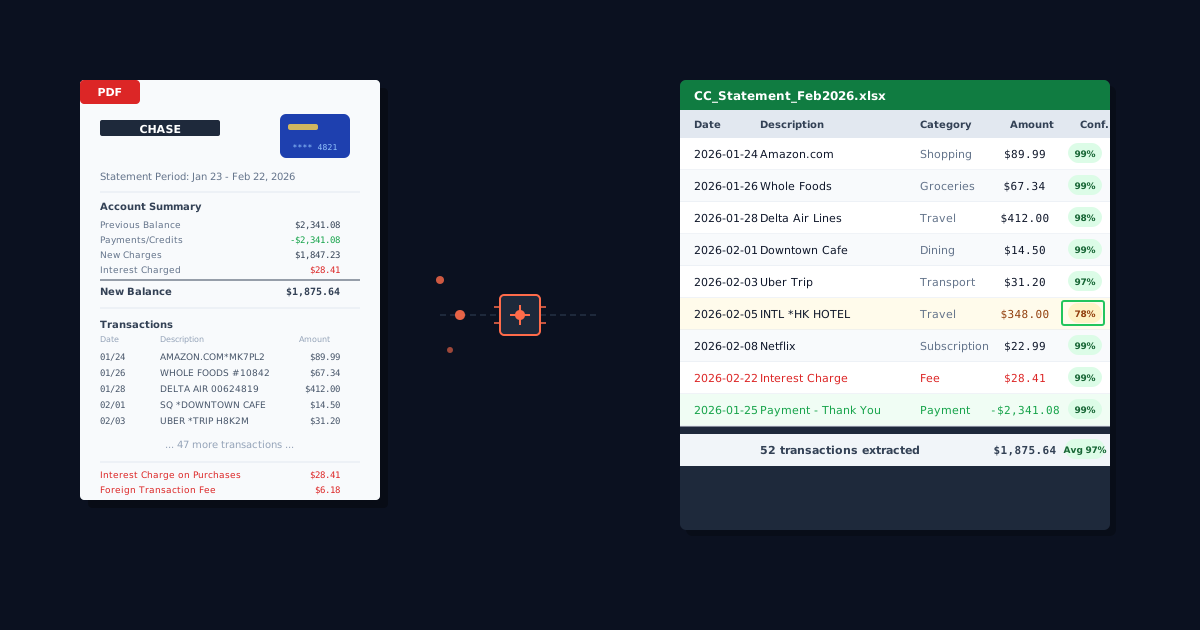
Specialized extraction tools are trained on thousands of financial document formats, including credit card statements from every major issuer. Instead of guessing at table structures, they understand what a credit card statement contains: transaction dates, posting dates, merchant names, amounts, reference numbers, interest charges, fees, payments, and running balances.
How It Works
- Upload your credit card statement PDF
- Automatic extraction identifies every transaction, fee, and adjustment—regardless of issuer or layout
- Confidence scoring flags any value the AI is uncertain about so you review only what needs attention
- Export to Excel or CSV, ready for QuickBooks, Xero, or any accounting software that accepts CSV imports
What Makes This Different for Credit Card Statements
The extraction handles the credit-card-specific challenges that generic converters miss:
- Interest and fees extracted as labeled fields, not lumped in with regular transactions—so your interest expense, annual fee, and late fee entries are ready to post to the correct accounts
- Charges appear as positive, payments and credits as negative, preserving the sign convention your accounting software expects
- Foreign transaction amounts are captured with the original currency notation separated from the converted amount
- Multi-card statements (like Amex accounts with authorized users) are parsed correctly, with transactions grouped per cardholder
- Issuer-agnostic: the same upload process works whether the statement is from Chase, Amex, Capital One, Citi, Discover, or a regional bank credit card
The Confidence Score Advantage
This is where specialized tools diverge from everything else. When an AI extracts 60 transactions from a credit card statement, not every value is equally clear. A merchant name like "SQ *DOWNTOWN COFFEE" might be crystal clear (99% confidence), while a transaction amount on a low-quality scanned statement might read as either $148.00 or $143.00 (78% confidence).
With tools like ParseField, each extracted field gets a confidence score. You see at a glance which values are certain and which need a second look. Instead of re-checking all 60 transactions, you verify the 2-3 that were flagged. A 30-second review replaces a 25-minute full re-read.
No other approach—manual, generic converter, or basic financial tool—gives you this level of visibility into extraction accuracy. For more on how this technology works under the hood, see our guide to financial document processing.
Choosing the Right Method
| Manual Entry | Generic Converter | AI Extraction | |
|---|---|---|---|
| Time per statement | 15-30 min | 5 min + 10-20 min cleanup | A few minutes |
| Handles interest/fees | You sort manually | Lumped with transactions | Extracted as labeled fields |
| Works across issuers | Yes (manual) | Hit or miss | Yes (AI adapts) |
| Foreign transactions | You interpret | Often mangled | Parsed correctly |
| Error detection | None until reconciliation | None | Confidence scores per field |
| Data security | Local (safe) | Unknown servers | Encrypted, auto-deleted |
| Cost | Your time | Free | Free tier available |
For a bookkeeping practice handling 5+ clients with credit cards, automated extraction pays for itself in the first month. According to Rho, finance teams spend 30-45 minutes per account on data gathering and transaction matching alone. Multiply that across 10-20 credit card accounts, and you're looking at 5-15 hours of monthly labor that automated extraction reduces to under an hour.
Tips for Cleaner Credit Card Statement Conversions
Regardless of the method you choose, these practices will improve your results.
Download digital PDFs directly from the issuer portal. Scanned paper statements introduce image quality issues that reduce extraction accuracy. Most issuers store 7+ years of statements online—download the originals when possible.
Process credit card statements separately from bank statements. Credit card sign conventions (positive = charges, negative = payments) are the opposite of bank statements (positive = deposits, negative = withdrawals). Mixing them in the same import batch can cause sign errors in your accounting software.
Verify the statement balance. After extraction, sum all transactions (charges minus payments minus credits) and compare to the "New Balance" on the statement. If the numbers match, your data is clean. This takes 10 seconds in Excel and catches any extraction or conversion errors.
Watch for mid-cycle payments. If your client paid their credit card balance mid-month, that payment appears on the statement as a credit. Make sure it extracted as a negative amount so your reconciliation doesn't double-count it.
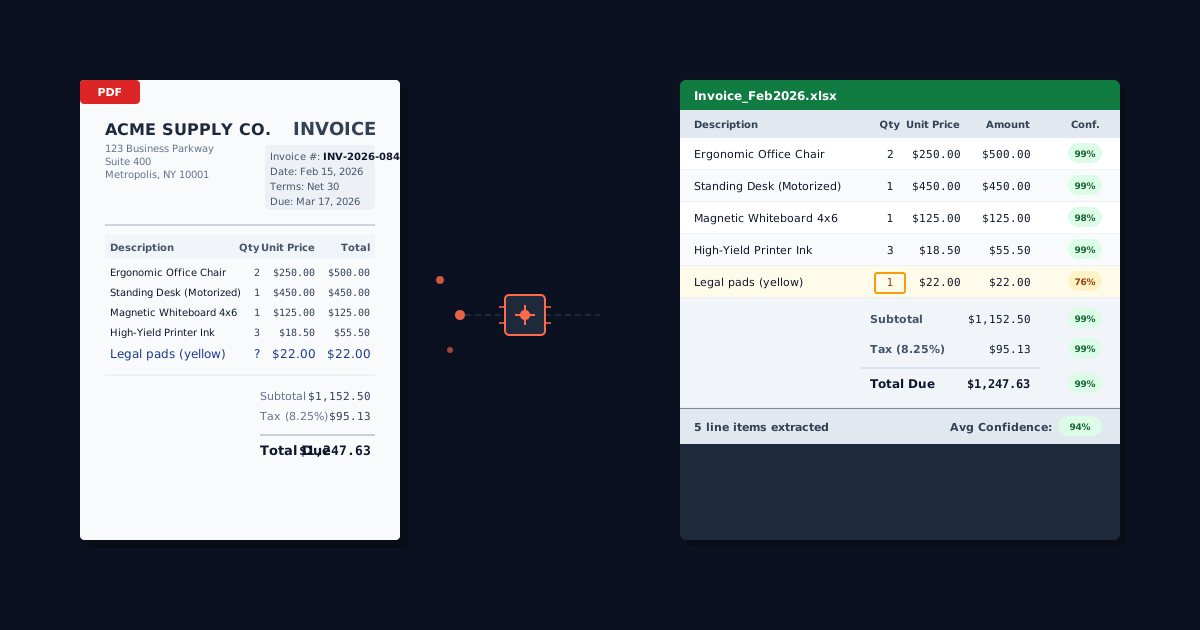
If you also handle bank statements, our guide on extracting transactions from bank statement PDFs covers the bank-specific workflow. For vendor invoices with line items and tax breakdowns, see our guide on converting PDF invoices to Excel. And if you're processing statements in volume across multiple clients, see our bulk bank statement processing guide for batch upload strategies.
Converting Credit Card Statements to CSV for QuickBooks and Xero
Many bookkeepers need their credit card statement data in CSV rather than Excel. QuickBooks Online, Xero, and most cloud accounting platforms accept CSV imports for bank and credit card transactions. The conversion process is identical to Excel—upload the PDF, extract the data—but you select CSV as the export format.
A few details specific to credit card statement CSV imports:
- QuickBooks Online requires columns for Date, Description, and Amount. Credits (payments) must be negative values. If your CSV uses separate debit/credit columns, you'll need to combine them into a single Amount column before import.
- Xero accepts CSV with Date, Payee, Description, and Amount columns. Xero handles negative amounts for credits automatically.
- Sage prefers a Reference column in addition to the standard fields. Most extraction tools include reference numbers in the output.
Getting the sign convention right is the most common import failure for credit card transactions. Charges should be positive, payments should be negative. If your import shows doubled balances or negative expense totals, the signs are flipped.
ParseField extracts every transaction from your credit card statement PDFs—including interest charges, fees, and foreign transactions—with a confidence score on every field. Export to Excel or CSV, ready for QuickBooks or Xero.
Start with 30 free pages. No credit card required.
Try It Free →
Frequently Asked Questions
Can I convert credit card statements from any issuer?
▼
AI-powered extraction tools work with credit card statements from all major issuers—Chase, American Express, Capital One, Citi, Discover, Bank of America, and others. They also handle statements from smaller banks and credit unions. Unlike template-based converters that break when statement layouts change, AI tools adapt to any format automatically.
How do I convert a credit card statement to CSV instead of Excel?
▼
Most extraction tools offer both Excel and CSV export options. CSV is the preferred format for importing transactions into QuickBooks, Xero, and other accounting software. The conversion process is identical—upload your PDF, let the tool extract transactions, and choose CSV as your export format instead of Excel.
Does the conversion capture interest charges and fees separately?
▼
Basic converters treat interest charges, annual fees, and late fees the same as regular transactions. Specialized financial extraction tools identify and extract these as separate fields with their own labels, making it straightforward to categorize them correctly during reconciliation rather than sorting through every line item manually.
Is it safe to upload credit card statements to an online converter?
▼
Only use tools with explicit security standards. Look for TLS encryption during upload, automatic file deletion after processing, and GDPR compliance. Avoid free consumer-grade converters that don't disclose their data retention or security policies. Credit card statements contain account numbers, transaction history, and spending patterns—treat them with the same care as bank statements.
How accurate is automated credit card statement extraction?
▼
AI-powered tools achieve 98%+ accuracy on clean digital PDFs. The remaining edge cases are typically foreign currency notations, unusually formatted merchant names, or low-quality scanned statements. Tools with confidence scoring flag these uncertain values so you can verify 2-5 transactions instead of re-checking every line. Manual data entry averages 96-99% accuracy but takes 15-30 minutes per statement.