Extract Transactions from Bank Statement PDFs
It's the 25th of the month. You just received 15 bank statements from different clients — all in PDF format — and you need them reconciled in QuickBooks by month-end. Manually copying and pasting each transaction takes 15–25 minutes per statement. That's 4–6 hours of tedious work before reconciliation even begins. One misplaced decimal or skipped row can throw off the entire client's books.
Extracting transactions from bank statement PDFs is one of the most time-consuming tasks in bookkeeping. Unlike invoices or receipts where line items are consistent, bank statements come in hundreds of different formats depending on the institution. Chase formats differently than Wells Fargo. Community banks use entirely different layouts than national chains. Even the same bank's commercial vs. personal statements look different.
This guide walks through five different methods for extracting bank statement transactions from PDF to Excel or CSV — from fully manual copy-paste to AI-powered OCR platforms. You'll see real time estimates, accuracy comparisons, and cost breakdowns for each method. Most importantly, you'll learn how confidence scoring on extracted data lets you verify accuracy without re-checking every single transaction by hand.
If you want to skip the manual work entirely, you can try ParseField free and extract up to 30 bank statement pages with confidence scores on every field.
Why Bank Statement PDFs Are Painful for Bookkeepers
Bank statements are uniquely difficult compared to other financial documents. Here are the specific pain points that make manual entry such a headache:
Format inconsistency across institutions: Chase Bank uses a three-column layout (Date, Description, Amount). Bank of America splits debits and credits into separate columns. Wells Fargo includes running balances after every transaction. Small credit unions often use custom formats that don't match any standard template. A bookkeeper managing 20 clients might deal with 15 different bank statement formats.
Multi-page complexity: Business accounts often generate 20, 30, or 50-page statements. Transaction tables break across page boundaries. Headers and footers repeat on every page, creating data noise. Some banks insert page subtotals mid-statement that aren't actual transactions.
Scanned vs. native PDFs: Clients sometimes scan paper statements on their phone instead of downloading the official PDF. This introduces image quality issues, skewed angles, and OCR challenges that native PDFs don't have.
Security considerations: Bank statements contain sensitive client financial data. Bookkeepers can't just upload them to random free converters without considering data security, retention policies, and compliance requirements (especially for CPA firms handling tax prep).
These factors make bank statement extraction fundamentally different from invoice or receipt processing. The workflow that works for one bank won't work for another. Manual methods are slow but controllable. Automation tools promise speed but require trust in accuracy. The challenge is finding a method that balances speed, accuracy, and verification — especially when you're processing statements for multiple clients every month.
Five Methods to Extract Bank Statement Transactions — Compared
Bookkeepers and accounting professionals use five primary approaches to extract transaction data from bank statement PDFs. Each method has specific trade-offs in time, cost, accuracy, and scale. This section compares all five so you can choose the right approach for your volume and accuracy requirements.
Method 1: Manual Copy-Paste from PDF
Open the PDF, select transaction rows, paste into Excel, cleanup formatting, verify amounts match the statement totals. This is the most common method for bookkeepers processing fewer than 5 statements per month.
- Time per statement: 15–25 minutes for a 5-page statement with 80–100 transactions. Increases to 45–60 minutes for 20+ page business account statements.
- Accuracy: High if done carefully, but prone to human error. Easy to skip a row, transpose digits, or misalign columns when pasting. One study found manual data entry error rates between 1–4% depending on transaction volume and complexity.
- Cost: Zero software cost, but expensive in labor hours. At $30/hour bookkeeper rate, manually processing 15 statements monthly costs $112.50–187.50 in labor.
- Best for: Solo bookkeepers with very low volume or one-off statement extractions where automation setup time exceeds manual time.
Method 2: Free PDF-to-Excel Converters (Adobe, Smallpdf, ILovePDF)
General-purpose PDF converters can export tables to Excel. Adobe Acrobat Pro includes "Export PDF" functionality. Online tools like Smallpdf and ILovePDF offer free or low-cost conversion. For more details on this approach, see our complete guide to converting bank statements from PDF to Excel.
- Time per statement: 5–10 minutes. The conversion is fast, but extracted data usually requires significant cleanup. Table boundaries are often misdetected. Headers repeat on every page. Running balance columns get mixed with transaction amounts.
- Accuracy: 60–75% depending on PDF complexity. Simple, clean layouts work reasonably well. Multi-column formats, split debit/credit columns, or scanned PDFs produce messy output requiring extensive manual correction.
- Cost: Free for basic converters. Adobe Acrobat Pro costs $19.99/month but requires learning curve for consistent results.
- Best for: Bookkeepers who need occasional conversion and have time to clean up messy output. Not practical for recurring monthly workflows across multiple clients.
Method 3: ChatGPT and LLM-Based Extraction
Some bookkeepers upload bank statement PDFs to ChatGPT (with plugins or PDF reading capability) or Claude and prompt the AI to extract transactions into structured format. The AI reads the PDF text and outputs a formatted table.
- Time per statement: 3–8 minutes. Fast to request, but requires prompt engineering to get consistent output format. Multi-page statements require splitting the PDF or multiple prompts.
- Accuracy: 80–90% on clean, native PDFs with standard layouts. LLMs can "hallucinate" values — inventing transaction amounts or dates that don't exist in the source PDF. No confidence scores or verification mechanism. One bookkeeper reported Claude inserting a $1,500 transaction that wasn't in the original statement.
- Cost: Free for ChatGPT free tier (with rate limits). ChatGPT Plus costs $20/month. Claude Pro costs $20/month.
- Best for: Tech-savvy bookkeepers processing a few statements monthly and willing to manually verify every transaction. Not recommended for client work where accuracy is legally binding.
Method 4: Dedicated Financial OCR Platforms (ParseField, Docsumo, Nanonets)
Specialized OCR platforms are purpose-built for financial document extraction. These tools use AI trained specifically on bank statements, invoices, and receipts — understanding accounting formats better than general converters. To learn more about the technology, read how OCR works for financial documents.
- Time per statement: 2–5 minutes. Upload, extract, download. Most platforms support batch processing for multiple statements simultaneously.
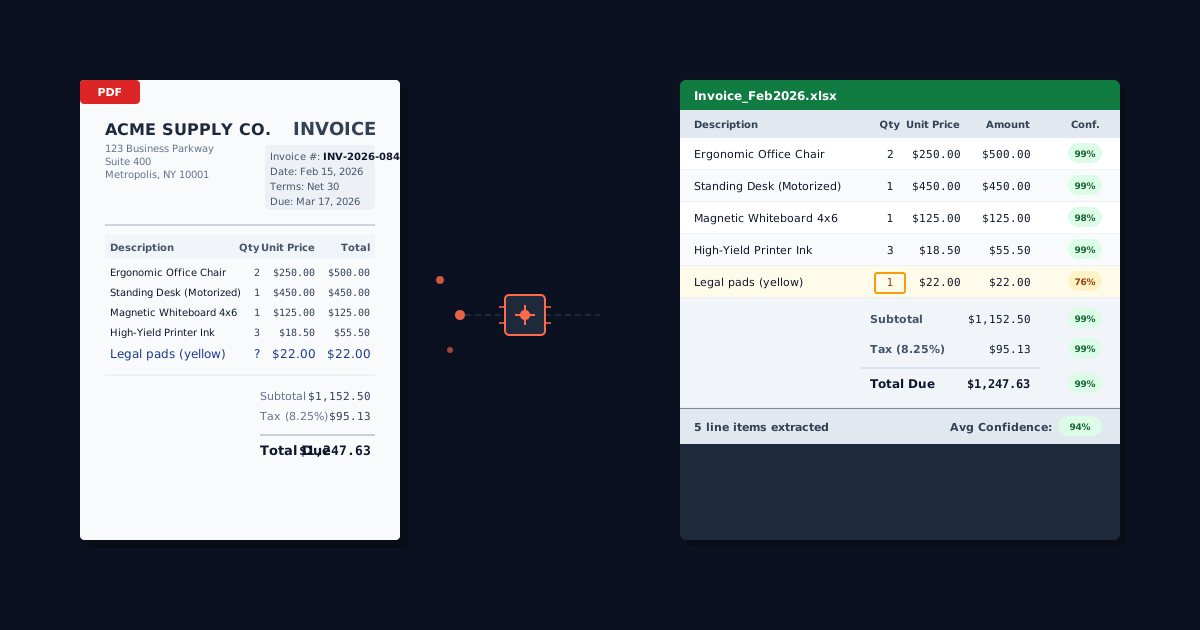
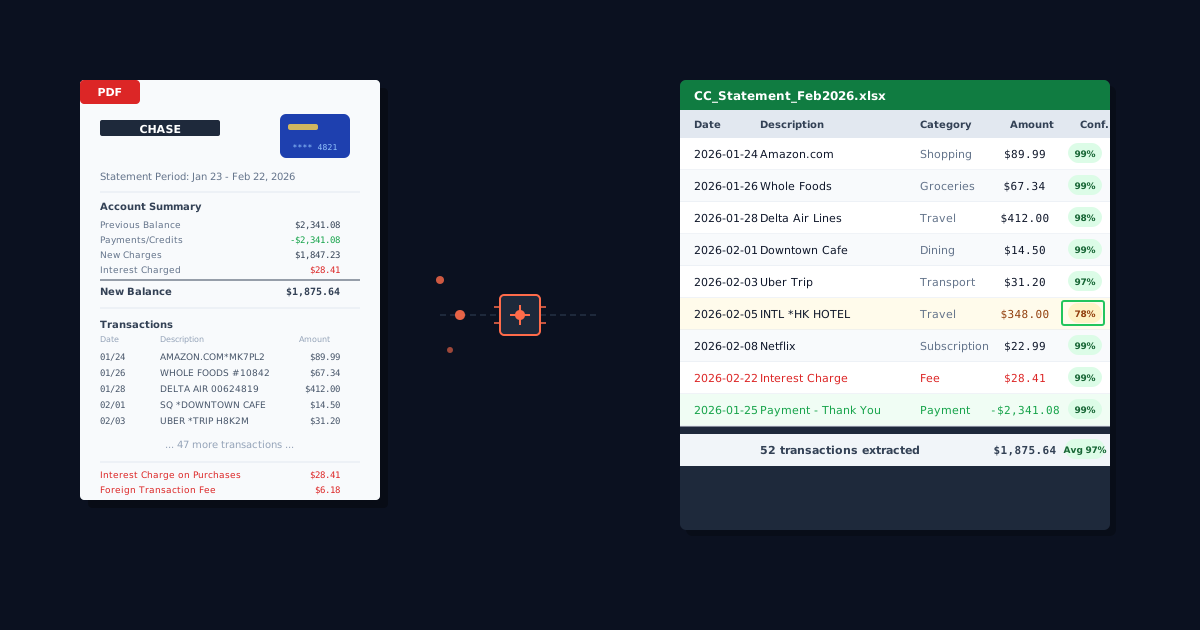
- Accuracy: 95–99% on most bank statement formats. The key differentiator is confidence scoring — platforms like ParseField show you which extracted values are certain (99% confidence) versus uncertain (72% confidence), so you know exactly which transactions need manual review.
- Cost: Varies by platform. ParseField offers 30 pages free to start, then $29/month ($23/month billed annually) for 250 pages per month. Enterprise platforms start at $200–500/month.
- Best for: Bookkeepers processing 10+ statements monthly, small accounting firms managing multiple clients, or anyone who needs accuracy verification without re-checking every field manually.
Method 5: Template-Based Parser Tools (Parsio, Parseur, Docparser)
Template parsers require setup: you upload a sample statement, draw boxes around fields you want extracted, and the tool applies that template to future statements from the same bank. This works well if all your clients use 2–3 banks, but breaks if you manage clients across 15 different institutions.
- Time per statement: 2–4 minutes per statement after template setup. Initial template creation takes 15–30 minutes per bank format.
- Accuracy: 90–95% once templates are calibrated. However, accuracy drops if the bank changes its statement layout (which happens 1–2 times per year for major institutions).
- Cost: $29–99/month depending on volume. Most tools charge per template or per document processed.
- Best for: Accounting firms with standardized client bases (e.g., all clients use Chase and Wells Fargo business accounts). Not practical for bookkeepers with diverse client portfolios.
| Method | Time Per Statement | Accuracy | Monthly Cost (15 statements) | Confidence Scoring | Best For |
|---|---|---|---|---|---|
| Manual Copy-Paste | 15–25 min | 96–99% (if careful) | $0 software + $112–187 labor | ❌ None | Solo bookkeepers, low volume |
| Free PDF Converters | 5–10 min | 60–75% | $0–20/month | ❌ None | Occasional use, simple formats |
| ChatGPT / LLMs | 3–8 min | 80–90% | $0–20/month | ❌ None (hallucination risk) | Tech-savvy users, manual verification required |
| Financial OCR (ParseField) | 2–5 min | 95–99% | $0 (30 pages) or from $29/month | ✅ Field-level confidence scores | High volume, multi-client bookkeepers |
| Template Parsers | 2–4 min (after setup) | 90–95% | $29–99/month | ❌ None | Firms with standardized client bank formats |
The comparison makes clear that no single method is best for everyone. Manual copy-paste gives you control but costs hours. Free converters are fast but messy. LLMs are impressive but untrustworthy for financial data. Template parsers work brilliantly if your clients all use the same 2–3 banks — but most bookkeepers manage clients across 10–15 different institutions. Financial OCR platforms like ParseField balance speed (2–5 minutes), accuracy (95–99%), and verification (confidence scores on every field) without requiring template setup for each bank format.
ParseField shows you a confidence score on every extracted field — dates, amounts, descriptions, running balances. You see exactly which values are certain (99% confidence) and which need a second look (72% confidence). No guessing. No re-checking every transaction manually.
Start with 30 free pages. Upload a bank statement and see the confidence scores yourself. No credit card required.
Try It With Your Own PDF →
How to Extract Transactions with ParseField (Step-by-Step)
Here is the exact workflow a bookkeeper would follow to extract transactions from a client's bank statement PDF using ParseField.
Step 1: Upload your bank statement PDF Go to parsefield.com and drag-and-drop the PDF file, or click "Choose File" to upload from your computer. ParseField accepts statements from any bank — no template setup required. You can upload multiple files at once for batch processing (available on Pro plan).
Step 2: ParseField processes the document ParseField's financial OCR automatically detects transaction tables, identifies column headers (Date, Description, Amount, Balance), and extracts each row. Processing time varies depending on file size and complexity — typically a few minutes per statement.
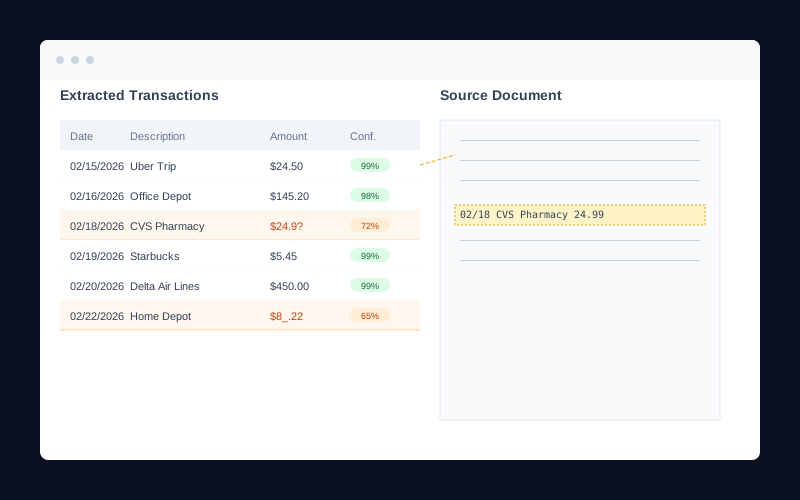
Step 3: Review confidence scores Once extraction completes, you see a data table with every transaction. Each field shows a confidence score. High-confidence fields (90%+) are safe to export. Fields scoring 70–89% are flagged for review. Fields below 70% should be verified against the source document. For example, if the OCR read "$1,234.56" but the confidence score is 68%, you should verify that value against the original PDF.
This is what separates financial OCR from general converters or LLMs. You don't have to manually check all 100 transactions — you only review the 3–5 flagged ones. This cuts verification time from 10 minutes to under 2 minutes.
Step 4: Edit flagged transactions if needed Click any flagged transaction and correct it directly in the ParseField interface. The original PDF is displayed side-by-side so you can visually confirm the correct value. Once corrected, the field updates and you can proceed.
Step 5: Download as Excel or CSV Click "Download" and choose Excel (.xlsx) or CSV format. The file includes all transactions in clean, structured columns: Date, Description, Debit, Credit, Balance. No headers repeating on every row. No page subtotals mixed in. No formatting cleanup required. You can import directly into QuickBooks, Xero, or your accounting software of choice.
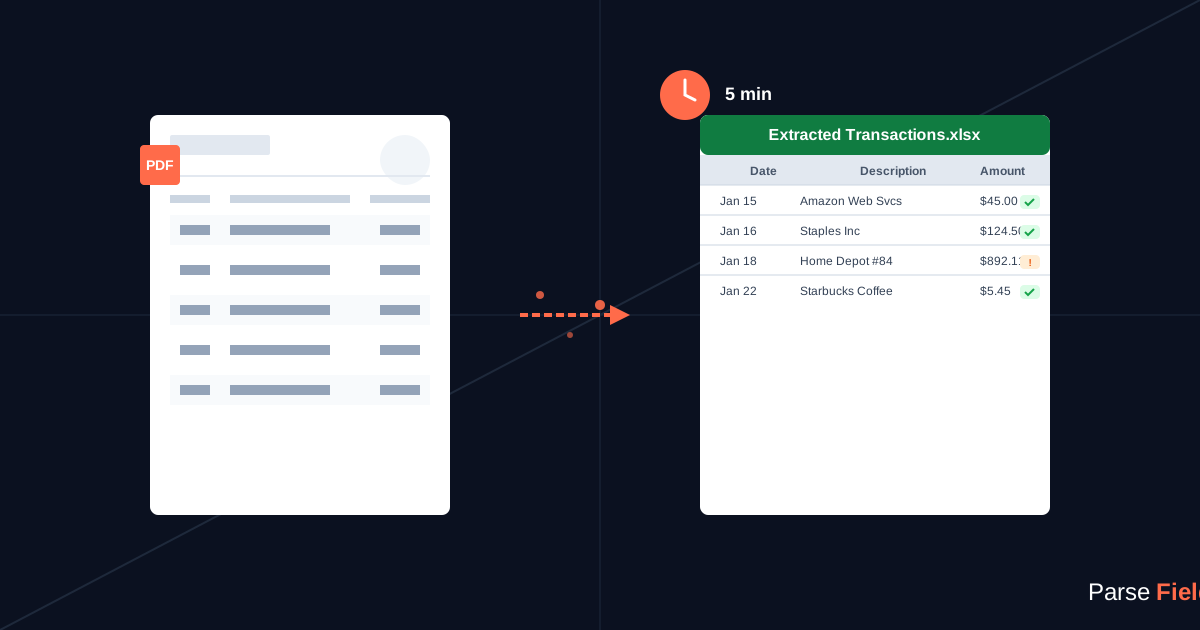
The entire workflow — upload, review confidence scores, correct 2–3 flagged fields, download — takes 3–5 minutes for a typical 5-page statement with 80–100 transactions. Compare that to 15–25 minutes manually or 10+ minutes cleaning up messy converter output.
Handling Edge Cases Most Tools Ignore
Real-world bank statements come with complications that generic converters can't handle. If you've ever tried uploading a password-protected PDF, a scanned statement with low image quality, or a 60-page business account statement, you've encountered these edge cases. Here's how to handle each one.
Password-Protected PDFs
Many banks allow customers to set passwords on statement PDFs for security. Most online converters fail immediately if the PDF is password-protected — they can't open the file to read it.
ParseField handles password-protected PDFs by prompting for the password during upload. Once you enter it, extraction proceeds normally. The password is used only for that session and is not stored. For bookkeepers managing client statements, you'll need the client to provide the password (or remove it before sending).
Workaround for other tools: Use a PDF editor like Adobe Acrobat or PDFtk to remove the password first, then upload to your extraction tool.
Scanned or Photographed Bank Statements
Clients sometimes photograph paper statements with their phone instead of downloading the official PDF. These scanned images are much harder to extract accurately because of:
- Skewed angles (document not perfectly flat when photographed)
- Shadows or glare from lighting
- Low resolution (especially if compressed via email)
- Background texture from the table or desk underneath
Dedicated financial OCR handles scanned PDFs better than general converters because the AI is trained to correct for skew and lighting issues. However, accuracy on scanned statements typically drops to 85–92% compared to 98%+ on native PDFs. Confidence scoring becomes even more critical here — you'll see more flagged fields requiring manual review.
Best practice: Ask clients to download official PDF statements from their bank's online portal instead of photographing paper copies.
Multi-Currency and International Bank Formats
Businesses with international operations receive bank statements in EUR, GBP, JPY, and other currencies. Some statements mix currencies on the same page (e.g., a USD account statement showing wire transfers in EUR).
ParseField's OCR detects currency symbols (€, £, ¥, $) and preserves them in the extracted data. However, you should verify that currency conversions or foreign exchange fees are captured correctly — these often appear as separate line items.
For international formats: European banks use commas as decimal separators (1.234,56) instead of periods (1,234.56). ParseField detects regional format automatically, but always verify the first few rows to confirm amounts were parsed correctly.
Statements Exceeding 50 Pages
Large business accounts can generate 80–100 page monthly statements. Processing these manually would take hours. Even automated tools sometimes struggle with files this large.
ParseField's batch processing on the Pro plan handles multi-file uploads and large documents efficiently. You can review confidence scores and download all transactions in a single Excel file.
Real-World Time and Cost Savings (With Actual Math)
Most guides claim automation "saves time" without quantifying it. This section provides three realistic scenarios with exact hour and dollar calculations so you can evaluate ROI for your specific volume.
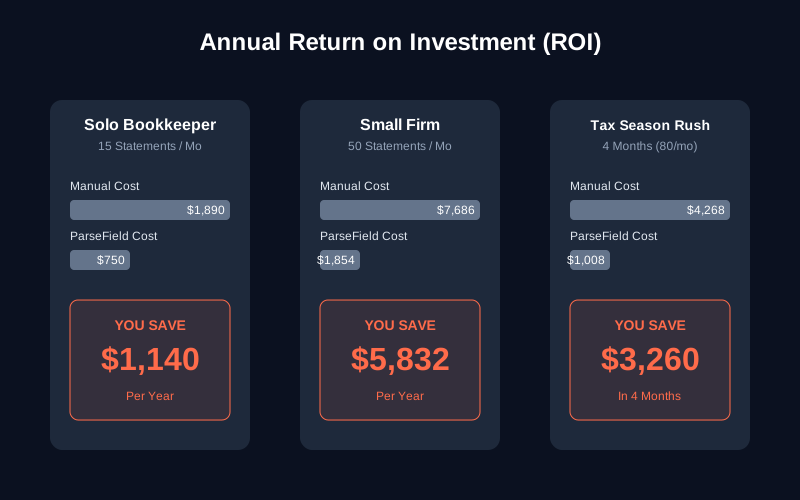
Scenario 1: Solo Bookkeeper with 15 Client Statements Monthly
Current manual workflow:
- 15 statements per month
- Average 5 pages per statement
- 18 minutes per statement (copy-paste, format cleanup, verify totals)
- Total: 4.5 hours per month
- At $35/hour bookkeeper rate: $157.50 monthly labor cost
With ParseField:
- Same 15 statements (75 pages total)
- ParseField Starter plan: $29/month, or $23/month billed annually (covers 250 pages — well within limit)
- 4 minutes per statement (upload, review confidence scores, download)
- Total: 1 hour per month
- At $35/hour bookkeeper rate: $35 labor + $29 software = $64/month
Savings: $93.50/month ($1,122 annually) plus 3.5 hours of freed capacity to take on more clients or focus on advisory work.
Scenario 2: Small Accounting Firm with 50 Client Statements Monthly
Current manual workflow:
- 50 statements per month across 2 bookkeepers
- Average 7 pages per statement (includes mix of personal and business accounts)
- 22 minutes per statement (longer business statements take 35–40 minutes)
- Total: 18.3 hours per month
- At $35/hour: $640.50 monthly labor cost
With ParseField:
- 50 statements (350 pages total)
- ParseField Pro plan: $89/month, or $71/month billed annually (covers 1,500 pages — well within limit)
- 4 minutes per statement
- Total: 3.3 hours per month
- At $35/hour: $115.50 labor + $89 software = $204.50/month
Savings: $436/month ($5,232 annually) plus 15 hours of staff capacity freed for higher-value work like tax planning or client advisory.
Scenario 3: Tax Season Surge (January–April)
Current manual workflow:
- Tax season volume: 80 statements per month for 4 months (clients providing 3–6 months of backlogged statements for tax prep)
- Average 6 pages per statement
- 20 minutes per statement
- Total: 26.7 hours per month × 4 months = 106.7 hours
- At $40/hour tax prep rate: $4,268 labor cost over 4 months
With ParseField:
- 80 statements (480 pages per month)
- ParseField Pro plan: $89/month ($71/month billed annually)
- 4 minutes per statement
- Total: 5.3 hours per month × 4 months = 21.3 hours
- At $40/hour: $852 labor + $356 software (4 months) = $1,208 total
Savings: $3,060 over tax season plus 85 hours of capacity to handle more tax clients or reduce overtime.
Bottom line: At 15 statements per month, automated extraction pays for itself in labor savings alone. At 50+ statements monthly, the ROI is undeniable — you're saving 10–15 hours per month that can be redirected to client advisory, new client acquisition, or simply reducing after-hours work. The confidence scoring feature means you're not sacrificing accuracy for speed — you're getting both. See ParseField's pricing for full plan details.
How to Import Extracted Data Into QuickBooks, Xero, and Other Accounting Software
Extracting transactions is only half the workflow. The real goal is getting that data into your accounting software for reconciliation. Different platforms accept different import formats, so you need to know what each one requires.
QuickBooks Online (QBO)
QuickBooks Online's native import function accepts QBO, OFX, QFX, and CSV formats. Since ParseField exports to CSV, you'll use the CSV import workflow.
Steps: Navigate to Banking > Upload from File > Select your CSV file > Map columns (Date, Description, Amount) > Confirm transactions > Import.
Important: QuickBooks requires a specific column order: Date, Description, Amount (negative for debits, positive for credits). ParseField's CSV export follows this format automatically, but if you've manually extracted transactions, you may need to reorder columns.
Xero
Xero accepts CSV and OFX formats. CSV import is the most flexible for bank statement data.
Steps: Go to Accounting > Bank Accounts > [Select Account] > Import a Statement > Upload CSV > Map columns > Reconcile.
Note: Xero requires separate debit and credit columns, not a single signed amount column. When exporting from ParseField, select "Split Debit/Credit" format option to match Xero's requirements.
Other Platforms (Sage, FreshBooks, Wave)
Most accounting software accepts CSV imports with standard column mappings. The key is ensuring your CSV has these minimum required fields:
- Transaction Date (MM/DD/YYYY or DD/MM/YYYY depending on region)
- Description or Payee
- Amount (either signed amounts or split debit/credit columns)
Some platforms also accept optional fields like Check Number, Category, or Memo. ParseField extracts these when present in the bank statement.
Pro tip for multi-client workflows: Export each client's bank statement with a consistent filename format (e.g., ClientName_BankName_MMYYYY.csv). This makes batch importing and file organization much easier during month-end close when you're processing 10–20 clients simultaneously.
Security Considerations When Processing Client Bank Statements
Bank statements contain some of the most sensitive client data you handle as a bookkeeper or accountant. Account numbers, transaction history, balances, and payee information are all visible. If you're uploading statements to an online tool, you need to know what happens to that data.
What to Look for in an Extraction Tool
- Encryption during upload and processing: The file should be encrypted in transit (HTTPS/TLS) and at rest (AES-256 or equivalent). Never use tools that process files over unencrypted HTTP connections.
- Automatic data deletion: The tool should delete uploaded files and extracted data within hours or days — not store them indefinitely. ParseField automatically deletes files hours after extraction. Retention policies should be clearly stated in the tool's privacy documentation.
- Compliance certifications: For CPA firms and accounting professionals, look for GDPR compliance and SOC 2 readiness. These certifications indicate the vendor has implemented security controls and undergone third-party audits.
- No data training or model improvement clauses: Some AI platforms reserve the right to use your uploaded data to improve their models. Read the terms carefully. ParseField does not use customer data for model training.
Best Practices for Bookkeepers
- Get client consent: Inform clients that you'll use automated extraction tools and explain the security measures in place. Some clients (especially high-net-worth individuals or businesses in regulated industries) may prefer manual processing for specific statements.
- Download and delete after import: Once you've imported transactions into QuickBooks or Xero, download the extracted CSV file to your secure local storage and delete it from the extraction platform. Don't leave files sitting in web-based tools indefinitely.
- Use password-protected statements when available: If the bank offers password protection on statement downloads, enable it. This adds a second layer of security if the file is intercepted in email.
- Avoid public Wi-Fi: Never upload client bank statements over coffee shop Wi-Fi or other public networks. Use your office network or a VPN if working remotely.
Conclusion
Extracting transactions from bank statement PDFs doesn't have to consume 4–6 hours of your month. Manual copy-paste works when you're processing 1–2 statements occasionally, but it doesn't scale. Free converters are messy. ChatGPT and LLMs are impressive but untrustworthy for financial data. Template parsers require too much setup for bookkeepers managing clients across many different banks.
Dedicated financial OCR platforms like ParseField balance speed, accuracy, and verification. You get 95–99% extraction accuracy on any bank format without template setup. You see confidence scores on every field so you know exactly which transactions need manual review — typically 2–5 out of 100. And you go from 20 minutes per statement down to 3–5 minutes without sacrificing accuracy.
At 15 statements per month, you save 3.5 hours monthly and $1,122 annually. At 50 statements monthly, you save 15 hours and $5,232 annually. That's capacity to take on more clients, reduce overtime, or focus on advisory work that builds deeper client relationships.
Confidence scoring is the critical feature that makes automation trustworthy. You're not blindly accepting AI output — you're using AI to handle the 95% of transactions that are certain, so you can focus your attention on the 5% that need verification.
Stop Copying Transactions by Hand. Start Closing Books Faster.
ParseField extracts bank statement transactions with 98%+ accuracy and shows you a confidence score on every field — dates, amounts, descriptions, balances. You know exactly which values to trust and which need a second look. Start free with 30 pages. No credit card. No setup fees. Upload a statement and see the confidence scores yourself.
Try It With Your Own PDF →
Frequently Asked Questions
How do I extract transactions from a bank statement PDF to Excel?
▼
You can manually copy-paste transactions (15–25 minutes per statement), use a free PDF-to-Excel converter like Smallpdf (5–10 minutes with messy cleanup), upload to ChatGPT (3–8 minutes but no accuracy verification), or use financial OCR like ParseField (2–5 minutes with confidence scores showing which fields to verify). The best method depends on your volume — occasional statements can be manual, but bookkeepers processing 10+ monthly should use dedicated OCR.
What's the most accurate way to extract bank statement data?
▼
Manual copy-paste is 96–99% accurate if done carefully, but it doesn't scale. Dedicated financial OCR platforms achieve 95–99% accuracy and provide confidence scores on every field, so you know exactly which transactions need verification. General PDF converters (60–75% accuracy) and LLMs like ChatGPT (80–90% with hallucination risk) require extensive manual correction.
Can I extract data from scanned or photographed bank statements?
▼
Yes, but accuracy drops compared to native PDFs. Scanned statements with skew, shadows, or low image quality typically achieve 85–92% accuracy versus 98%+ on clean PDFs. Financial OCR tools handle scanned documents better than general converters. Always ask clients to download official PDFs from their bank's portal instead of photographing paper statements.
Is it safe to upload client bank statements to online extraction tools?
▼
It depends on the tool's security practices. Look for: encryption during upload and processing (HTTPS/TLS, AES-256), automatic data deletion (hours or days, not indefinite storage), compliance certifications (GDPR, SOC 2), and no-data-training clauses. ParseField encrypts files during upload, processes on secure servers, and automatically deletes statements hours after extraction.
How much does ParseField cost for bank statement extraction?
▼
ParseField offers 30 pages free to start — no credit card required. The Starter plan is $29/month ($23/month billed annually) for 250 pages per month. The Pro plan is $89/month ($71/month billed annually) for 1,500 pages per month. There are no setup fees, and you can cancel anytime. A 7-day free trial is available on the Starter plan.
Can ParseField handle statements from any bank?
▼
Yes. ParseField works with 500+ file formats and doesn't require template setup for each bank. Whether your clients use Chase, Wells Fargo, Bank of America, or small community credit unions, the OCR detects transaction tables automatically.
How do confidence scores work?
▼
After extracting transactions, ParseField shows a confidence percentage for every field — dates, amounts, descriptions, balances. High-confidence fields (90%+) are safe to export. Fields scoring 70–89% are flagged for review. Fields below 70% should be verified against the source document. You only need to manually verify the flagged transactions instead of re-checking all 100 rows.
Can I import extracted data directly into QuickBooks or Xero?
▼
Yes. ParseField exports to CSV and Excel formats that both platforms accept. For QuickBooks Online, use the CSV import function. For Xero, select the Split Debit/Credit export format to match Xero's required column structure.
What if my client's bank statement is password-protected?
▼
ParseField prompts for the password during upload. Once you enter it, extraction proceeds normally. The password is used only for that session and isn't stored.
How long does it take to process a 50-page business bank statement?
▼
ParseField processes large statements in a few minutes. After processing, you spend 4–6 minutes reviewing confidence scores. Total workflow time is under 10 minutes compared to 45–60 minutes manually.