PDF Bank Statement to Xero: The Complete Guide
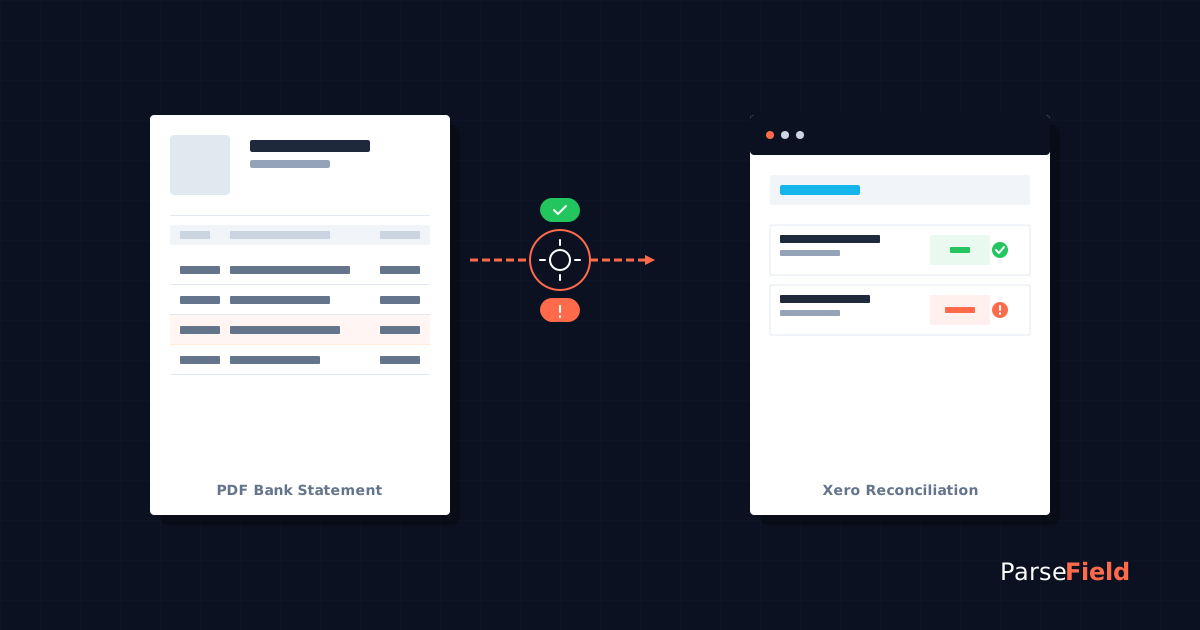
It's Tuesday afternoon. Your client just emailed you 8 PDF bank statements. You need all transactions reconciled in Xero by Friday morning. Xero won't accept PDFs.
You have two options. Copy every transaction by hand — spending 20–45 minutes per statement with a 1–4% error rate. Or convert the PDF to a format Xero actually accepts: CSV, OFX, QBO, or QFX.
This isn't a minor technical annoyance. Bookkeepers processing 10–50 statements per month lose 12+ hours to manual data entry. That's $5,000+ in annual labor costs for work a tool can complete in minutes. One transposition error — reversing $1,250 and $1,520 — can cascade into days of reconciliation work.
This guide covers every method to convert PDF bank statements for Xero import. You'll learn the five conversion approaches (including Xero's new US/Canada-only PDF import), how to prepare CSV files that Xero won't reject, and what to look for in a conversion tool. We'll compare accuracy rates, processing times, and costs across all options so you can choose the right approach for your workflow.
If you want to skip the manual work entirely, you can try ParseField free and convert up to 30 pages with confidence scoring on every extracted field.
Why Xero Can't Just Read Your PDF Bank Statements
Xero is built to accept structured financial data — transactions already organized into fields like Date, Description, and Amount. PDF bank statements are unstructured documents designed for human reading, not software processing.
What file formats Xero actually accepts
Xero's manual import feature accepts five file types:
- CSV (Comma-Separated Values) — requires column mapping on first upload
- OFX (Open Financial Exchange) — Xero's recommended format, imports automatically
- QFX (Quicken Financial Exchange) — imports automatically
- QBO (QuickBooks Web Connect) — imports automatically
- QIF (Quicken Interchange Format) — supported with minimal preparation
As of May 2024, Xero added direct PDF import — but only for customers in the United States and Canada, and only for digital PDFs from supported banks. UK, Australia, New Zealand, and South Africa users still cannot upload PDFs directly.
Bank feeds vs. manual import — when each applies
Bank feeds pull transactions automatically from 16,000+ supported financial institutions. They're the ideal solution when available. But three common scenarios require manual import instead:
- Historical data beyond 90 days (bank feeds don't backfill).
- Bank feed failures or gaps lasting days or weeks.
- Banks that don't support Xero integration — particularly regional credit unions and international institutions.
Why PDF remains the most common format bookkeepers receive
Clients share PDF statements rather than granting read-only bank access for security reasons. Accountants require original bank statements (not accounting software exports) for tax preparation and audit documentation. Businesses migrating from QuickBooks, MYOB, or manual spreadsheets bring years of historical PDF records with them.
The Hidden Cost of Manual Bank Statement Entry
Time and error data — what manual entry actually costs
Small businesses spend an average of 12+ hours per month on manual bank transaction entry. At 150 hours annually and a bookkeeper billing rate of $35/hour, that's $5,250 in labor costs for work automation can complete in minutes.
The error rate for manual data entry ranges from 1–4% depending on transaction complexity and volume. A small business processing 100 transactions per month will make 12–48 errors per year. Each error costs an estimated $800 to identify and correct — totaling $9,600–$38,400 annually in error remediation.
Bookkeepers managing 15–20 clients report spending 40–60 hours per month on statement entry alone when processing manually.
A 2025 survey by Parseur found that manual data entry costs U.S. companies an average of $28,500 per employee each year when accounting for labor, errors, and lost productivity.
56% of employees report burnout from repetitive data tasks. The problem isn't just cost — it's talent retention.
Why a single transposition error can cascade into days of reconciliation work
You're reconciling December for a client. The bank statement shows a $1,520 payment to a vendor. You type $1,250.
Xero's bank reconciliation screen now shows a $270 discrepancy. You check the original statement — the transaction is $1,520. You search for a missing $270 transaction that doesn't exist. You contact the client asking if they forgot to mention a $270 expense. The client checks their records and finds nothing.
After two hours of investigation, you realize you transposed the digits. The books are corrected. But you've spent valuable billable hours chasing a problem that wouldn't exist with automated extraction. One bookkeeper switching from manual entry to DocuClipper reported saving "probably 10 hours a week."
You have five options. Three are automated (with different trade-offs), one is manual, and one is outsourced. Here's how each works.
Five Methods to Convert PDF Bank Statements for Xero Import
Method 1 — Xero's native PDF import (US and Canada only)
Xero launched direct PDF import in May 2024 for US and Canadian customers. Upload a digital PDF bank statement and Xero extracts transactions in an average of 35 seconds.
- Limitations: Only available in the US and Canada (not UK, Australia, New Zealand, or South Africa). Only supports digital PDFs from recognized banks — scanned paper statements won't work. Not all financial institutions are supported yet. Users in excluded regions have been requesting this feature on Xero's Product Ideas forum as recently as November 2025.
- Best for: US/Canada Xero users with digital PDFs from major banks who want a native solution without third-party tools.
Method 2 — Hubdoc bank statement extraction (free with Xero, limited bank support)
Hubdoc is Xero-owned document management software included free with all Xero subscriptions. It processes 70% of bank statements in under 30 seconds and 100% in under 3 minutes.
- Limitations: US and Canada only. Supports digital PDFs from recognized banks but not scanned paper statements. Does not cover all financial institutions. Must use Hubdoc's full document workflow — not just a standalone converter.
- Best for: US/Canada Xero users already using Hubdoc for receipt and invoice management who want an all-in-one document processing system.
Method 3 — Third-party OCR conversion tools (the most flexible option)
Specialized bank statement converters use OCR (Optical Character Recognition) to extract transaction data from PDFs and output Xero-ready CSV or OFX files. Tools like ParseField, DocuClipper, Datamolino, and Zera Books support global banks, handle scanned paper statements, and process batches — critical for bookkeepers managing 10+ clients.
Accuracy rates range from 96–99.6% depending on the tool and PDF quality. Most tools process statements in a few minutes. Pricing typically runs $15–80/month for 50–2,000 pages.
These tools work similarly to the methods covered in our guide on converting bank statements from PDF to Excel — the only difference is the output format (Xero-ready CSV instead of Excel).
- Best for: Bookkeepers managing multiple clients (5+ clients with different banks). Users outside the US and Canada. Anyone processing scanned paper statements, historical catch-up work, or handling 10+ statements per month.
Method 4 — Manual copy-paste and CSV formatting
Open the PDF in Adobe Reader or Preview. Copy transaction data. Paste into Excel or Google Sheets. Format into columns: Date, Description, Amount. Consolidate separate debit/credit columns into a single Amount column (debits as negative numbers). Save as CSV. Upload to Xero.
- Time required: 10–15 minutes per statement for someone experienced with CSV formatting. 20–45 minutes for occasional users troubleshooting format errors.
- Best for: One-off conversions where paying for a tool isn't justified. Users with only 1–2 statements per month. Situations where the statement format is extremely unusual and automated tools fail.
Method 5 — Outsourced data entry services
Hire a virtual assistant or offshore data entry service to manually enter transactions. Typical cost: $15–25 per statement depending on transaction volume and turnaround time.
- Best for: Firms that prefer human verification over automated tools. Catch-up bookkeeping projects with years of historical statements where paying per-statement is more economical than per-page tool pricing.
- Not recommended: For ongoing monthly work — the cumulative cost exceeds tool subscriptions within 2–3 months.
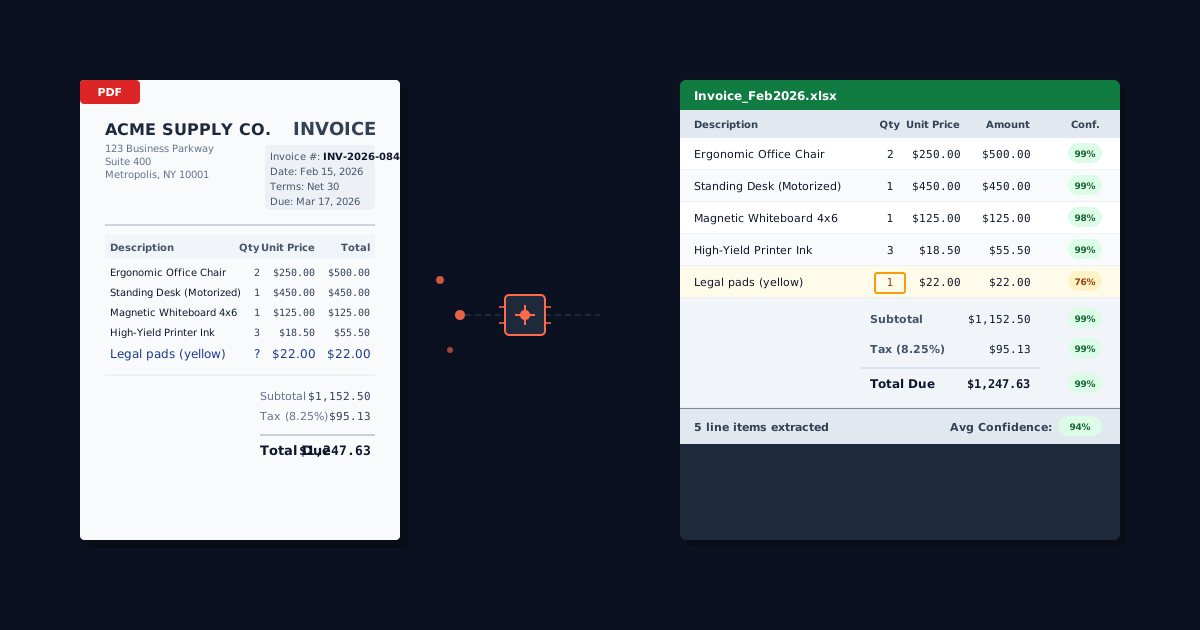
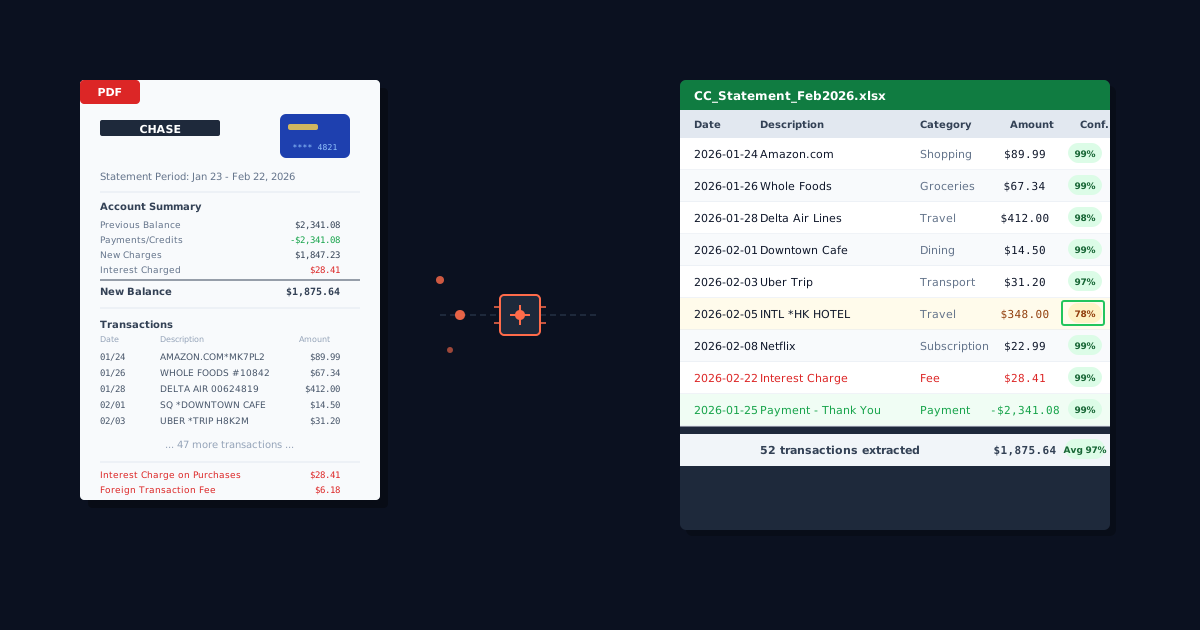
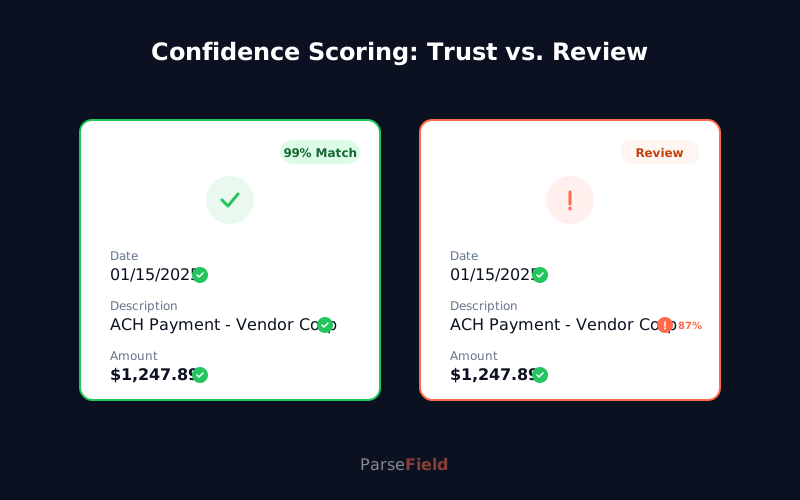
ParseField shows you a confidence score on every extracted field — so you know exactly which values to trust and which need a second look. Most conversion tools give you a single accuracy percentage for the entire document. ParseField scores every date, every amount, and every description individually.
Start with 30 free pages. No credit card required.
Try It Free →
How to Import a Converted Bank Statement Into Xero Step by Step
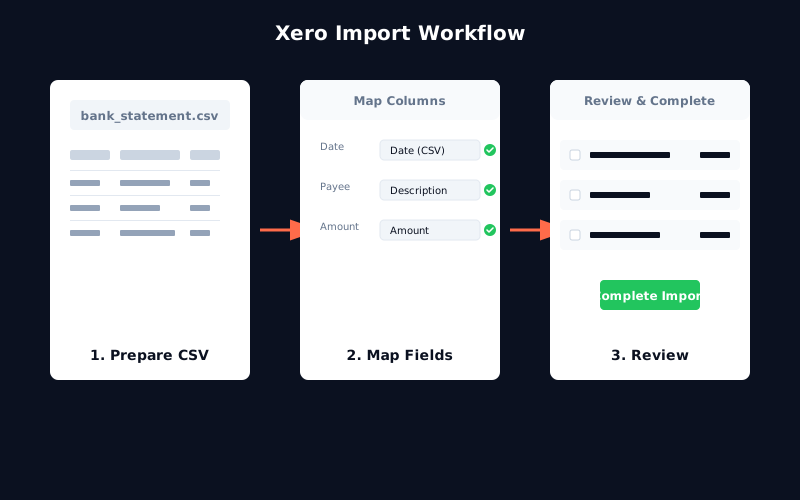
Once you have a CSV file, the import process takes about 20 seconds if your file is formatted correctly.
Preparing your CSV file for Xero's requirements
Xero is strict about CSV formatting. Three required columns: Date, Description or Payee, and Amount. Optional but recommended: Reference or Check Number.
- Date format: US Xero expects MM/DD/YYYY. UK, Australia, and New Zealand Xero expect DD/MM/YYYY. A mismatch is the #1 cause of "No valid statement data" errors.
- Amount column: Consolidate separate Debit and Credit columns into a single Amount field. Debits should be negative numbers (e.g., -$1,520.00 for a payment). Credits should be positive numbers. Remove currency symbols and comma separators — Xero wants raw numbers only.
- Encoding: Save as UTF-8. Mac Excel sometimes inserts invisible characters that break Xero imports — if you get persistent errors on Mac, open the CSV in TextEdit and re-save.
- Remove blank rows: Extra rows at the top (header text) or bottom (account summary) will cause import failures.
Uploading and mapping columns in Xero
In Xero, navigate to Accounting → Bank Accounts → select the account → Manage Account → Import a Statement. Choose your CSV file.
On the first upload, Xero asks you to map CSV columns to Xero fields. Match "Date" to Date, "Description" to Payee, "Amount" to Amount. Xero remembers this mapping for future uploads from the same bank.
Reviewing transactions and avoiding duplicate imports
Preview the transactions before completing the import. Uncheck any duplicates — if you've already imported some transactions via bank feed or a previous upload, importing them again creates reconciliation problems.
Verify the date range matches your expectations. Check that debits show as negative and credits as positive. Complete the import. Transactions appear in the bank reconciliation screen ready to match and categorize.
How to Choose the Right PDF-to-Xero Conversion Method
Not all conversion methods are equal. Here's how the five approaches compare across the factors that matter most to bookkeepers:
| Feature | Xero Native PDF | Hubdoc | Third-Party OCR Tools | Manual CSV | Outsourced Entry |
|---|---|---|---|---|---|
| Geographic availability | US/Canada only | US/Canada only | Global | Global | Global |
| Scanned PDF support | No — digital only | No — digital only | Yes (most tools) | Yes | Yes |
| Accuracy rate | Not published | Not published | 96–99.6% | 100% (human) | 99%+ (human) |
| Processing time | ~35 seconds | 30 sec–3 min | A few minutes | 10–45 minutes | 24–48 hours |
| Cost (monthly) | Free (in Xero) | Free (in Xero) | $15–80/mo | $0 (labor only) | $15–25/stmt |
| Batch processing | Limited | Yes | Yes | No | Yes |
| Confidence scoring | No | No | ParseField only | N/A | N/A |
| Bank coverage | Major banks only | Major banks only | 20,000+ global banks | Universal | Universal |
| Best for | US/CA users | US/CA users | High volume, global | 1–2 stmts/mo | Catch-up |
What to look for — confidence scoring, data validation, and error handling
Most conversion tools report a single accuracy percentage like "99.6% accurate" for the entire document. That's useful for marketing but not for verification. If a 50-transaction statement has 2 errors, you still need to check all 50 to find them.
ParseField scores every field individually. Date: 99% confidence. Amount: 95% confidence — flagged for review. Description: 87% confidence — flagged. You see exactly which fields to double-check before importing.
Look for tools that validate against opening and closing balances. Datamolino flags inconsistencies when extracted transactions don't reconcile to the statement's ending balance — catching OCR errors before they enter Xero.
Why accuracy verification matters more than speed
A faster conversion tool saves you a few minutes per statement. A tool that catches extraction errors before import saves you hours of reconciliation work. Speed is convenient. Accuracy is essential.
Avoiding the Most Common Xero Import Errors
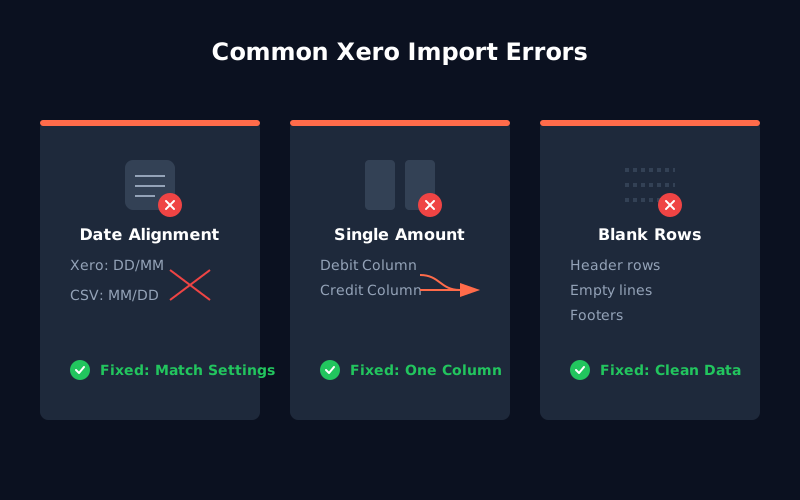
Even with properly converted data, Xero's import process rejects files for formatting issues. Here are the three most common errors and how to fix them.
Date format mismatches (DD/MM/YYYY vs. MM/DD/YYYY)
- Error message: "No valid statement data found in the file" or "Invalid date format."
- Cause: Your Xero organization is set to DD/MM/YYYY (UK/Australia/NZ standard) but your CSV uses MM/DD/YYYY (US standard), or vice versa.
- Fix: Check your Xero organization's date format in Settings → General Settings → Financial Settings. Reformat your CSV to match. In Excel, select the date column → Format Cells → Custom → enter "DD/MM/YYYY" or "MM/DD/YYYY" as needed.
The debit/credit column problem — consolidating into a single amount field
- Error message: "Statement must contain an Amount column" or similar variation.
- Cause: Your CSV has separate "Debit" and "Credit" columns. Xero requires a single "Amount" column.
- Fix: Create a new "Amount" column. Use this formula:
=IF(B2<>"",B2*-1,C2)where B is Debit and C is Credit. This makes debits negative and keeps credits positive. Copy the formula down, then copy and paste values to remove formulas. Delete the original Debit and Credit columns.
Dealing with blank rows, encoding issues, and vague error messages
- Error message: "There was a problem importing the file" with no additional detail.
- Common causes: Blank rows above the header or below the last transaction. Special characters or currency formatting ($1,234.56 instead of 1234.56). Encoding issues from Mac Excel or Google Sheets exports.
- Fix: Delete all blank rows. Remove currency symbols, commas, and parentheses from numbers. Re-save the CSV as UTF-8 encoding. If problems persist, open the CSV in a plain text editor to check for hidden characters.
Getting Started With Automated PDF Bank Statement Conversion
Modern OCR tools use computer vision and machine learning to identify transaction tables in PDF bank statements. If you're new to OCR technology, our plain-English guide explains what is OCR for financial documents and how it works on statements, invoices, and receipts. The technology works differently for text-based PDFs (created digitally from online banking) versus scanned PDFs (photographed or scanned paper statements).
- Text-based PDFs: The tool extracts embedded text directly. Accuracy is typically 98–99.6% because the text is already machine-readable. Processing typically takes a few minutes.
- Scanned PDFs: The tool uses OCR to recognize characters in the image. Accuracy ranges from 92–98% depending on scan quality, font legibility, and whether the statement uses standard formatting. Processing may take slightly longer than text-based PDFs.
ParseField handles both types and shows you a confidence score on every extracted field. Upload your bank statement PDF. ParseField extracts transactions with field-level accuracy indicators — every date, amount, and description gets its own confidence score. Fields below 90% confidence are automatically flagged for review. Download a clean CSV or Excel file ready for Xero import.
The system flags uncertain extractions before they become reconciliation problems. A partially obscured amount on a scanned statement? ParseField marks it for manual verification. An unusual transaction format the OCR isn't sure about? Flagged. You verify only the fields that need attention — not every transaction.
You get 30 pages free to start. No credit card required. No setup fees. If you need higher volume, the Starter plan covers 250 pages per month at $29/month ($23/month billed annually) with confidence scores included.
The alternative is 20–45 minutes per statement copying numbers by hand. ParseField extracts the same data in minutes with 98%+ accuracy. You spend your time verifying flagged fields — not re-entering transactions you've already processed three times before.
Conclusion
Five methods exist. Two (Xero native + Hubdoc) work only in the US and Canada with digital PDFs from supported banks. Manual CSV creation works anywhere but costs 10–45 minutes per statement. Outsourcing works for one-time catch-up projects but becomes expensive for recurring monthly work.
Third-party OCR tools offer the best combination of flexibility, accuracy, and cost for bookkeepers managing multiple clients or processing more than a few statements per month. The most important feature isn't speed — it's accuracy verification through confidence scoring and data validation.
Convert your first bank statement with ParseField's free tier and see how confidence scoring shows you exactly which fields to trust before you import them into Xero.
Stop Copying Bank Transactions by Hand
ParseField extracts line items from your bank statements with 98%+ accuracy — and shows you a confidence score on every field so you know exactly which values to trust before importing to Xero. Convert your first statement in minutes. Start free with 30 pages. No setup fees, no credit card required.
Start For Free →
Frequently Asked Questions
Can Xero import PDF bank statements directly?
▼
Xero added direct PDF import in May 2024, but only for customers in the United States and Canada. The feature works with digital PDFs from supported banks — scanned paper statements are not supported. Users in the UK, Australia, New Zealand, and South Africa still cannot upload PDFs directly and must convert them to CSV, OFX, QBO, QFX, or QIF format first.
What file formats does Xero accept for bank statement imports?
▼
Xero's manual import feature accepts CSV, OFX, QFX, QBO, and QIF files. OFX is Xero's recommended format because it imports automatically without column mapping. CSV requires you to map columns on the first upload (Date, Description, Amount), but Xero remembers the mapping for future imports from the same bank.
How do I convert a PDF bank statement to CSV for Xero?
▼
Use an OCR conversion tool like ParseField, DocuClipper, or Datamolino to extract transactions from the PDF into a CSV file. Ensure your CSV has three columns: Date, Description, and Amount. Dates must match your Xero organization's format (MM/DD/YYYY for US, DD/MM/YYYY for UK/AU/NZ). Consolidate any separate Debit and Credit columns into a single Amount field — debits as negative numbers, credits as positive. Remove currency symbols, comma separators, and blank rows. Upload to Xero through Accounting → Bank Accounts → Manage Account → Import a Statement.
Can I import historical bank statements going back several years into Xero?
▼
Yes. Xero's bank feeds typically only pull the most recent 90 days of transactions, but manual imports have no time restriction. You can upload statements from any date range. This is common for businesses migrating to Xero from another accounting system or for catch-up bookkeeping projects. Process historical PDFs through a conversion tool that supports batch uploads to save time on large volumes.
What happens if the OCR conversion tool makes an error?
▼
Most OCR tools have 96–99.6% accuracy, meaning 1–4 transactions per 100 might have errors. ParseField shows you a confidence score on every extracted field — dates, amounts, and descriptions are individually scored. Fields below 90% confidence are flagged for manual review before you download the file. This lets you verify only the uncertain fields instead of re-checking every transaction. Always preview extracted data before importing to Xero. Compare a few transactions against the original PDF to spot systematic errors like wrong date formats or reversed debit/credit values.